Table of Contents
Document Management (File, Templates, Layout)
Managing Multiple Documents
Criterion provides a flexible tab-based system for working on multiple files simultaneously.
Supported file types:
- .critx (native Criterion documents)
- .pdf (view-only)
- Image files (.jpeg, .png) (view-only)
Tab Management Features:
| Feature | Description |
|---|---|
| No duplicate tabs | If you attempt to open a file already loaded, Criterion brings the existing tab into focus instead of creating a duplicate |
| Full filename visibility | When a tab title is truncated, hovering over it displays a tooltip with the complete filename |
| Custom tab order | Reorder tabs horizontally using drag and drop to suit your workflow |
| Safe tab closure | Closing a tab with unsaved changes triggers a confirmation dialog with three options: Save, Don't Save, or Cancel |
| Unsaved changes indicator | An asterisk (*) appears next to the filename in the tab when modifications have not been saved |
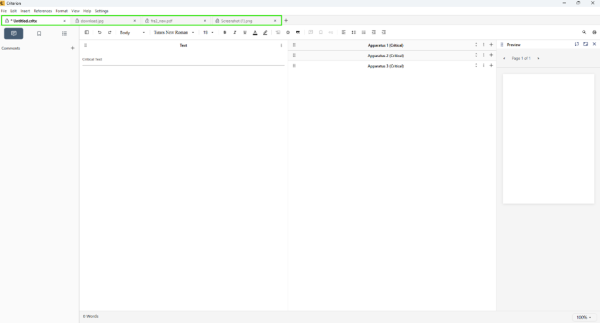
Tab and Box Management
Managing Apparatus Boxes
Within a .critx document, you can organize critical content using up to 8 apparatus boxes, with specific type constraints:
Box type limits:
- Maximum one box each of: Inner Margin, Outer Margin, Section Notes, and Page Notes
- Up to four additional boxes of Critical type only
Adding boxes: Click the “+” button next to the apparatus area to add a new box (default type: Critical)
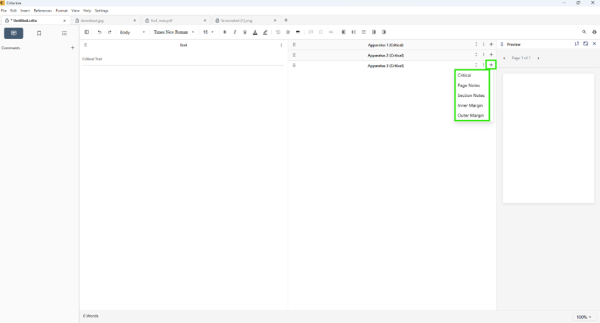
Vertical reordering: Apparatus boxes can be reordered vertically via drag and drop. This order is persisted across sessions.
Expand/Collapse: Each box can be expanded or collapsed using the toggle button on its title bar.
Contextual menu (accessed via the “⋮” icon) offers:
- Change Type: only available if the box is empty
- Rename: customize the box name (the type in parentheses cannot be edited)
- Hide: toggle visibility in the editor (content remains in the document)<note tip>Hiding an apparatus box does not exclude it from print preview, PDF export, or layout rendering.</note>
- Delete: removes the box and all its content (confirmation popup if text is present)
- Export: exports the box content to Excel
- Show/Hide Note and Comment Highlights: toggles visual highlighting
Managing Main Text Content
The main text is structured into four predefined sections:
1. Introduction
2. Table of Contents
3. Critical Text (mandatory)
4. Bibliography
You cannot:
- Add new sections
- Reorder sections
- Collapse or resize the main text area
Context menu (right-click in the main text) provides:
- Update Table of Contents: Manually refreshes the ToC based on current heading structure
- Insert Bibliography: Inserts all citations used in the document at the cursor position
- Toggle Highlights: Show or hide visual highlights for notes, comments, and bookmarks
Templates Management
Template Selection
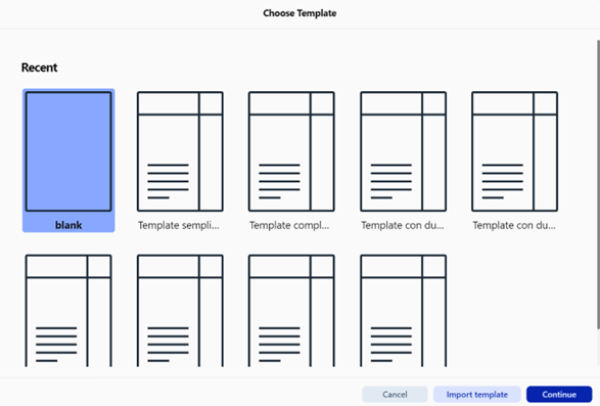
When creating a new document, users can select from:
- Recent Templates: A list of templates recently used or created
- Blank Template: A default template with basic structure and user-defined styles
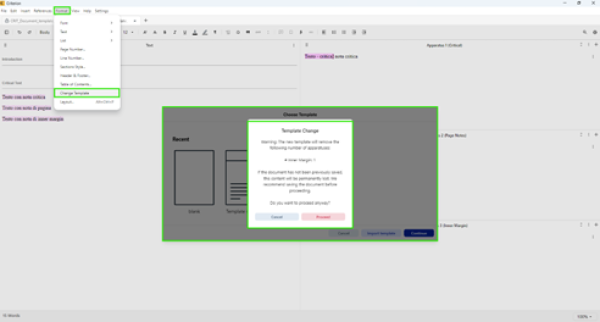
Changing Template During Editing
 | Warning: It is strongly recommended to create a backup copy before performing the “Change Template” operation. Doing so may result in irreversible data loss. |
|---|
1. Go to Format > Change Template
2. Select the desired template
3. If the new template has fewer apparatus types, a warning will appear showing which content will no longer be visible
4. Confirm to apply changes (irreversible)
Creating a Template ("Save as Template")
To save your current document layout as a reusable template:
1. Go to File > Save as Template
2. Or use keyboard shortcut: Ctrl+Shift+S (Windows/Linux) / ⇧⌘S (macOS)
3. The template is saved as a .TML file (JSON format) in the Criterion templates folder
Templates include:
- Document structure and sections
- Paratextual elements (headers, footers, page numbers)
- Custom styles and formatting rules
Layout Setup
Access layout configuration via:
- Creating a new document: File > New > Blank Layout > Continue
- Editing existing document: Format > Layout
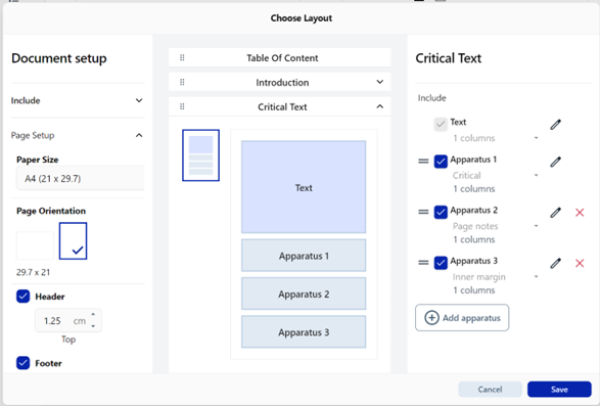
Document Setup
Configure general layout settings:
| Setting | Options | Default |
|---|---|---|
| Sections to include | Table of Contents, Introduction, Critical Text (mandatory), Bibliography | All except ToC optional |
| Paper size | A3, A4, A5, A6, Custom | A4 |
| Orientation | Portrait, Landscape | Portrait |
| Margins | Top, Bottom, Left, Right (cm) | 1.25 cm all sides |
| Inner/Outer Margin for Notes | Custom value (cm) | 0.5 cm |
Critical Text Customization
Main Text:
- Number of columns: 1 to 4
Apparatus:
- Maximum: 8 apparatus sections
- Types available: Critical (default), Page Notes, Section Notes, Inner Margin, Outer Margin
- Apparatus sections are always displayed in one column (LaTeX constraint)
| | Warning: LaTeX Limitation: If you set up multiple columns in the main text, we recommend avoiding apparatus boxes containing content referenced in the text. Due to technical constraints with the reledmac package, this combination may cause rendering errors in print preview. |
|---|
File-Level Page Setup
For global page settings, use File > Page Setup:
- Paper size and orientation
- Header/footer positions
- Document margins
Settings here override defaults and are consistent with Layout Setup configuration.