Table of Contents
ITSERR - WP3 - CRITERION Installation Guide
1. Supported Operating Systems
The production release of the Criterion application supports the following operating system versions:
- Windows 11 – Supported starting from Microsoft's official release on October 5, 2021.
- Ubuntu 24.04.1 LTS – Supported as of the first point release of Ubuntu 24.04 LTS, released on August 29, 2024, which includes cumulative updates and stability improvements.
- macOS Tahoe (version 26) – Supported from its official release in September 2025, as announced by Apple during WWDC 2025.
- macOS Sequoia (version 15) – Supported starting from its initial release in September 2024 and subsequent 15.x updates.
 | Note: If newer operating system versions are released and Criterion exhibits malfunctions during installation, startup, or normal usage, such issues shall be managed by opening dedicated enhancement-type tasks in the Redmine ticketing system used by D4Science, in order to assess, track, and address compatibility updates. |
|---|
2. Installing Criterion on Windows
Follow these steps to successfully install the Criterion application on your Windows computer.
Step 1: Download the Installer
- Navigate to the official D4Science Gitea page for Criterion.
- Locate and download the latest Windows build. The downloaded file will be a .zip archive.
Step 2: Extract and Launch the Application
- Extract the contents of the downloaded .zip file to a folder of your choice (e.g.,
C:\Criterion). - Inside the extracted folder, locate the main application.
- To launch Criterion, you have two options:
- Double-click the Criterion Application file with your left mouse button.
- Right-click the Criterion Application file and select Open from the context menu.
Step 3: Select the Installer Language
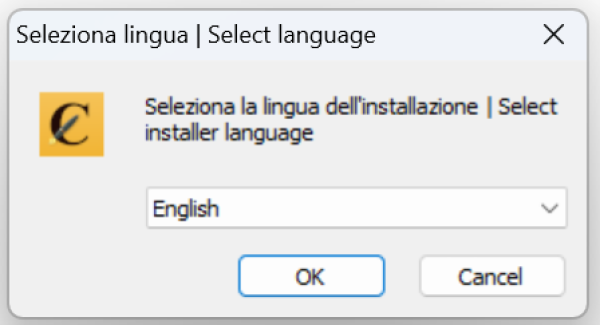
- Upon launching, a window titled “Select installer language” will appear.
- From the dropdown list, choose your preferred language for the installation process. Available options are:
- Deutsch
- English (Default)
- Español (Alfabetización Internacional)
- Français
- Italiano
- Click the OK button to proceed.
Step 4: Begin the Installation Wizard
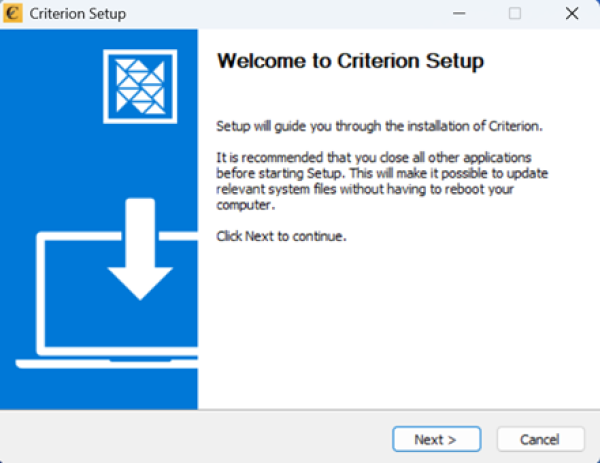
- The Criterion Setup wizard will open, welcoming you to the installation process.
- Read the initial instructions and click the Next > button to continue.
Step 5: Review and Accept the License Agreement
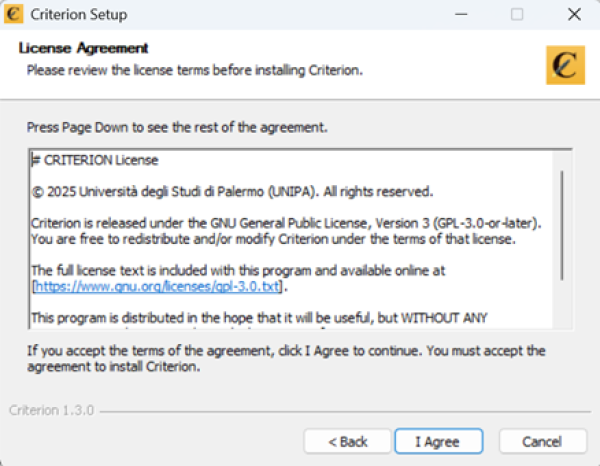
- You will be presented with the License Agreement.
- Use the scrollbar or the Page Down key to read the full terms.
- If you agree to the terms, click the I Agree button to proceed. You must accept the license to continue with the installation.
Step 6: Configure Installation Options
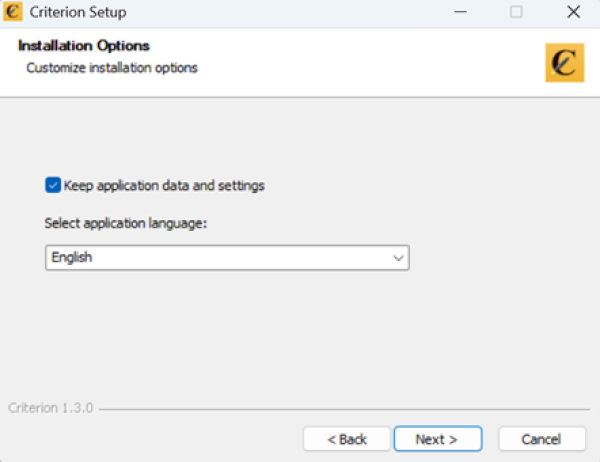
- On the Installation Options screen, you can customize your setup:
- Keep application data and settings: This option allows you to preserve existing configuration files and user data from a previous installation.
- First-time installation: This box will be unchecked by default.
- Updating an existing installation: This box will be checked by default.
- Select application language: Choose the default language for the Criterion application's interface. You can change this later in the Preferences menu after installation.
- Once you have made your selections, click the Next > button.
Step 7: Choose the Installation Directory
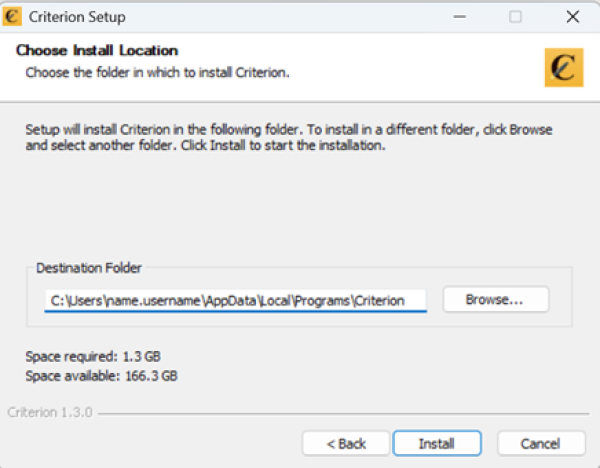
- The next screen will prompt you to select the destination folder for the Criterion installation.
- You can accept the default path (
C:\Users\name.username\AppData\Local\Programs\Criterion) or click Browse… to choose a different location. - Click the Install button to begin copying files to your chosen directory.
Step 8: Complete the Installation
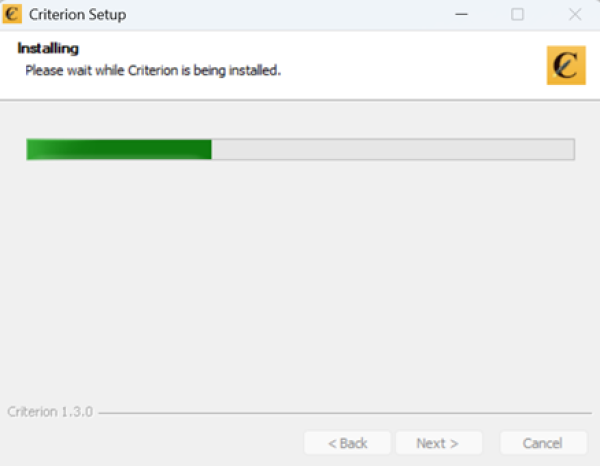
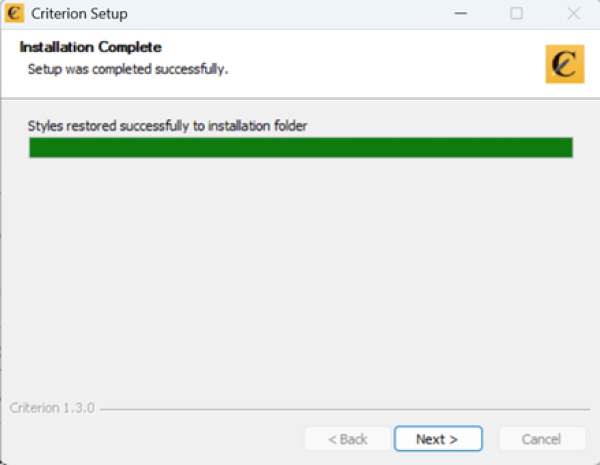
- Wait for the installation process to be completed. A progress bar will indicate the status.
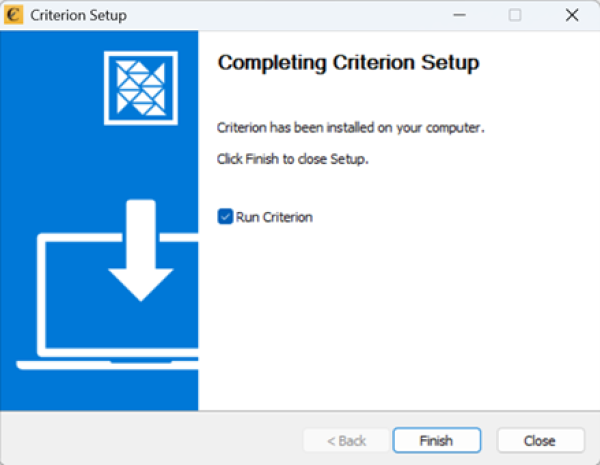
- Once finished, you will see a final screen with the option to Launch Criterion immediately.
- Click Finish to close the installer.
- If you want to start using Criterion right away, ensure the “Run Criterion” checkbox is selected before clicking Finish.
- If you prefer to launch it later, uncheck the box and click Finish.
You are now ready to use Criterion!
3. Installing Criterion on Linux
Follow these steps to install the Criterion application on a Debian-based Linux system (e.g., Ubuntu 24.04.1 LTS) using the official .deb package.
3.1. Install the Package Using dpkg
Step 1: Download the Installer
- Navigate to the official D4Science Gitea page for Criterion.
- Locate and download the latest Linux build. The file will have a .deb extension (e.g.,
criterion_1.0.0_amd64.deb).
Step 2: Install the Package Using dpkg
- Open a terminal window.
- Navigate to the directory where the .deb file has been downloaded (e.g.,
cd ~/Downloads). - Run the following command to install the package:
sudo dpkg -i criterion_1.0.0_amd64.deb
Note: Replace criterion_1.0.0_amd64.deb with the actual filename.
Note: The dpkg command installs the package but does not automatically resolve missing dependencies. If the installation fails due to unmet dependencies, proceed to the next step.
Step 3: Resolve Missing Dependencies (if needed)
If you see an error message indicating that dependencies are missing or the package is “half-installed,” run the following command to automatically install the required dependencies and complete the configuration:
sudo apt --fix-broken install
This command uses the system's package manager (apt) to fetch and install any missing libraries from the official repositories, ensuring Criterion functions correctly.
Step 4: Launch Criterion
Once the installation is complete, you can launch Criterion in one of the following ways:
- From your application menu (search for “Criterion”).
- By running the command
criterionin a terminal.
Step 5: (Optional) Update or Remove
- To update Criterion, download the new .deb file and repeat the installation process.
- To uninstall, run:
sudo dpkg -r criterion
3.2. Install the Package Using apt
Step 1: Download the Installer
- Navigate to the official D4Science Gitea page for Criterion.
- Locate and download the latest Linux build. The file will have a .deb extension (e.g.,
criterion_1.0.0_amd64.deb).
Step 2: Install the Package
You can install the .deb package using either a graphical interface or the command line.
Option A: Graphical Installation (Recommended for most users)
- Open your file manager and navigate to the folder containing the downloaded .deb file.
- Double-click the file to open it with the default software installer (e.g., GNOME Software or Ubuntu Software).
- Click Install and enter your administrator password when prompted.
- Wait for the installation to complete.
Option B: Command-Line Installation
- Open a terminal window.
- Navigate to the directory containing the .deb file (e.g.,
cd ~/Downloads). - Run the following command to install the package:
sudo apt install ./criterion_1.0.0_amd64.deb
Note: Replace criterion_1.0.0_amd64.deb with the actual filename.
If prompted, confirm the installation by typing Y and pressing Enter.
Note: The apt command automatically resolves and installs any missing dependencies from the system repositories, if available.
Step 3: Launch Criterion
Once installed, you can launch Criterion in one of the following ways:
- From the application menu (search for “Criterion”).
- By running the command
criterionin a terminal.
Step 4: (Optional) Update or Remove
- To update Criterion, download the new .deb file and repeat the installation process.
- To uninstall, run:
sudo apt remove criterion
3.3. Install Criterion via App Center
If you prefer using a graphical interface instead of the command line, the easiest way to install Criterion on Ubuntu is through the built-in App Center.
Here is how to do it:
- Locate the downloaded file: Open your Files application and navigate to the folder where you saved the Criterion package (usually your Downloads folder). Look for the file ending in .deb (for example,
criterion-1.4.0-amd64.deb).
- Open with App Center: Double-click the .deb file. This should automatically open the Ubuntu App Center (or Software Install, depending on your Ubuntu version).
- Troubleshooting tip: If double-clicking doesn't work or opens an archive manager instead, right-click the .deb file, select Open With, and choose App Center (or Software Install).
- Start the installation: Once the App Center window loads the Criterion application page, click the Install button.
- Authenticate: Ubuntu will ask you to confirm your identity to install new software. Enter your system password and click Authenticate.
- Finish and Launch: Wait a few moments for the progress bar to complete. Once finished, Criterion is successfully installed on your system!
You can now close the App Center, press the Super (Windows) key to open the Application grid, type “Criterion,” and click the icon to launch the app.
4. Installing Criterion on MacOS
Follow these steps to successfully install the Criterion application on your macOS computer.
Note: The installation process described has been tested on the M4 processor.
Step 1: Download the Installer
- Navigate to the official D4Science Gitea page for Criterion.
- Locate and download the latest macOS build. The downloaded file will be a .zip archive.
Step 2: Extract and Launch the Application
- Extract the content of the downloaded .zip file.
- Inside the extracted folder, locate the main application.
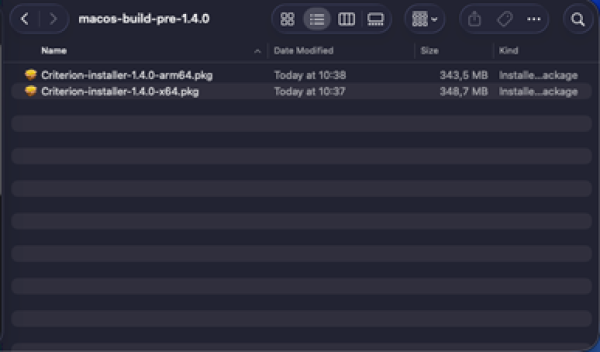
- The user must select one of the .pkg files based on their processor type:
- Choose the arm64 version for Apple Silicon (M1 and later)
- Or the x64 version for Intel-based macOS
- To launch Criterion, you have two options:
- Double-click the Criterion Application file with your left mouse button.
- Right-click the Criterion Application file and select Open from the context menu.
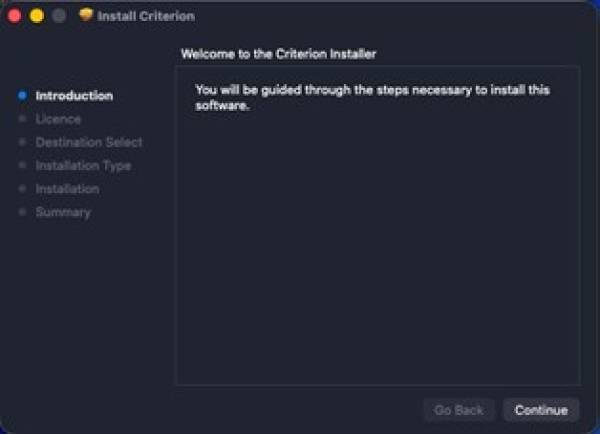
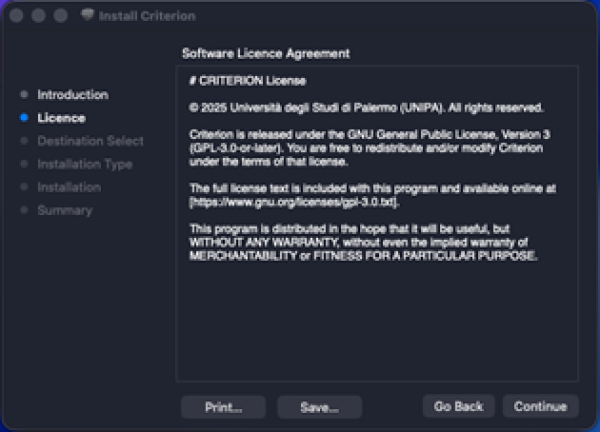
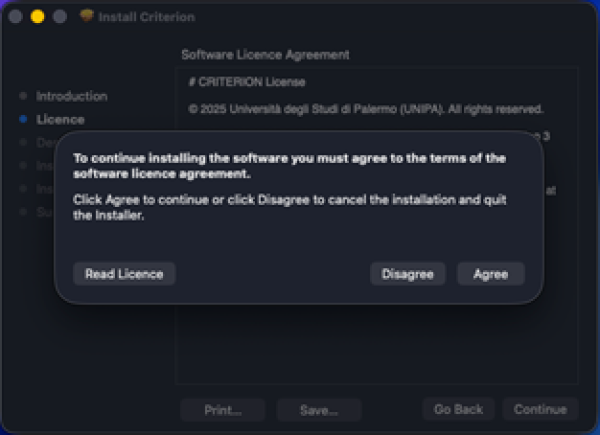
The first page of the Criterion installation will open, followed by the relevant progress steps.
Important: If the app has been signed with the Apple Developer ID certificate, the installer will guide you through the installation process in a manner similar to the Windows experience, as illustrated in the mockups below.
If the app hasn't been signed with the certificate, you must first complete the preliminary steps which are indicated on guidance from Apple's official support page.
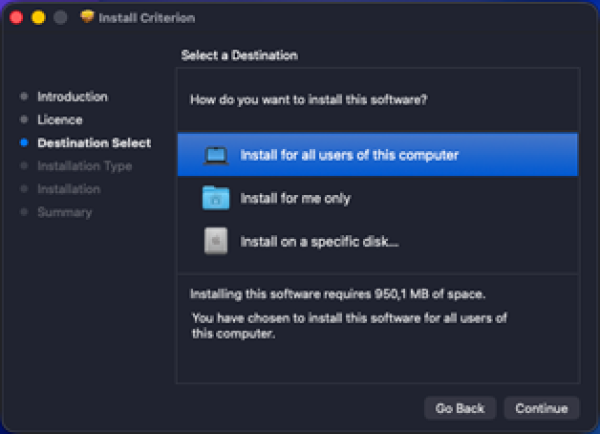
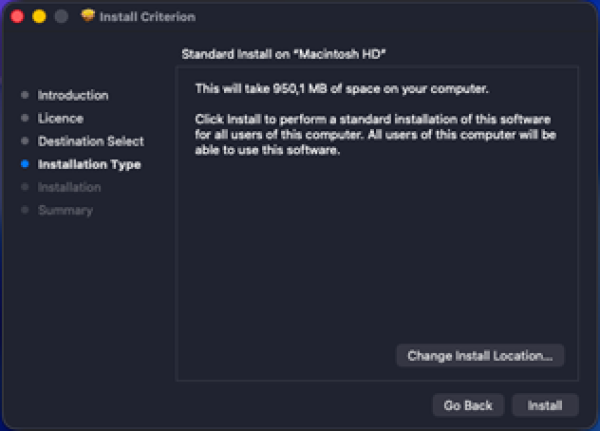
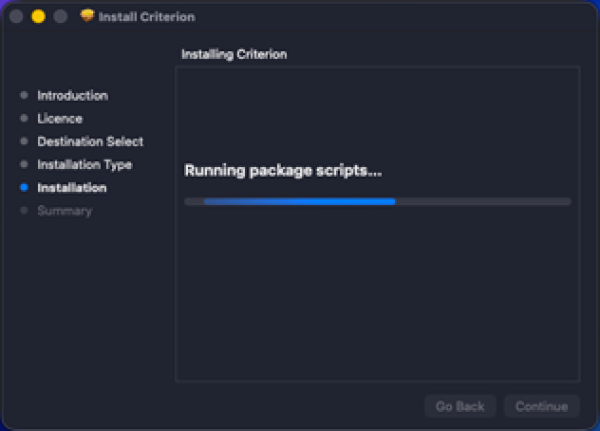
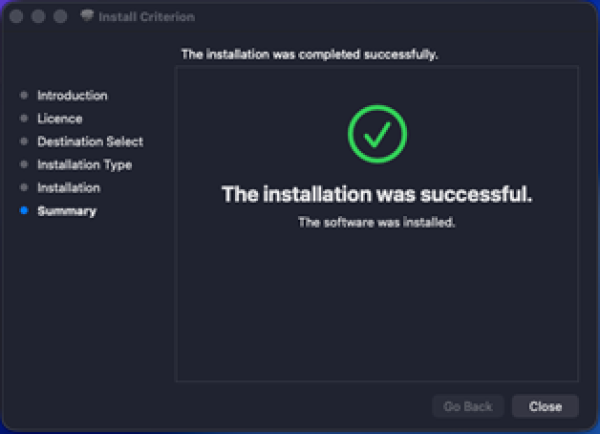
You are now ready to use Criterion on macOS!