Table of Contents
Metadata Management in Criterion
Overview
In academic, editorial, or research workflows, accurate documentation is essential. That's where metadata comes in.
With this guide, you'll learn how to manage metadata in your Critical Edition Document using Criterion. Whether you're adding an author name, tracking revisions, or inserting dynamic titles into headers, Criterion gives you full control over your document's background information.
You can:
- View and edit standard metadata (like title, author, license)
- Add custom fields (e.g., project name, deadline)
- Remove optional fields
- Use metadata dynamically in headers and footers
All metadata follows a predefined structure, ensuring consistency across projects.
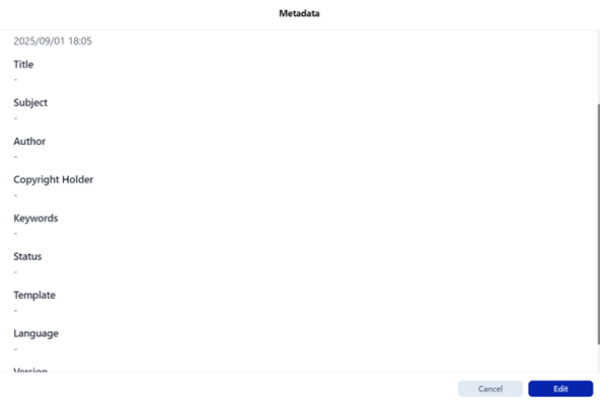
How to Access the Metadata Panel
To begin managing metadata:
1. Open your document in Criterion
2. Go to the top menu bar and click: File → Metadata
This opens the Metadata Management Panel, where all current metadata is listed in a structured format.
Viewing Existing Metadata
Once inside the panel, you'll see a complete list of metadata associated with your document.
It includes:
- Predefined fields (standardized by Criterion)
- Custom fields (added by you)
- Both mandatory and optional entries
Each field displays:
- Its label (e.g., Title, Author)
- Its current value
- Whether it's editable or read-only
Editing Metadata
How to Edit a Field:
1. In the Metadata Panel, click the Edit button
2. A pop-up window appears showing all editable fields
3. Change any value in a text box
4. Click Save to confirm
All changes are applied instantly.
 | Warning: Some fields cannot be edited: auto-generated ones like Creation date, Last saved date, Template. These appear grayed out or marked as “Read Only”. |
|---|
Adding New Metadata
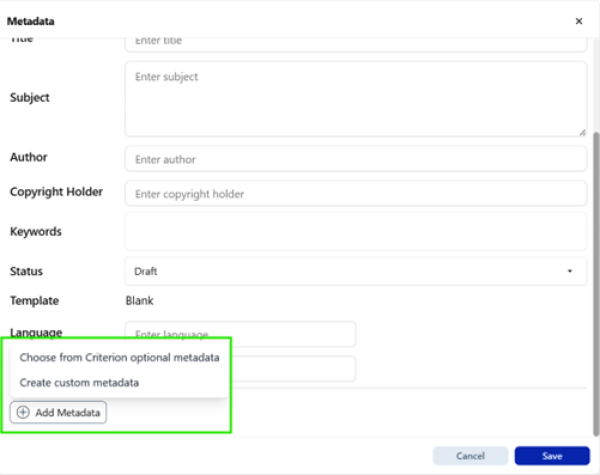
Criterion lets you add new metadata in two ways:
Option A: Choose from Optional Predefined Fields
1. Click Add Metadata
2. Select: Choose from Criterion optional metadata
3. A list appears with available optional fields (e.g., Persistent Identifier, Manager, Company, Publisher, License Information, Category)
4. Check the boxes next to the ones you want
5. Click Insert
These fields are now part of your document and can be edited normally.
Option B: Create a Custom Metadata Field
1. Click Add Metadata
2. Select: Create custom metadata
3. Fill in:
- Field Name (Label): e.g., "Lead Researcher"
- Value Type: Choose from Text String, List, Number, Date
- Value: Enter the actual data (e.g., "Dr. Anna Rossi")
4. Click Insert
Your custom field appears in the metadata list under Custom Metadata Fields.
 | Note: All custom fields are: always optional, always editable, always removable. |
|---|
Removing Metadata
You can remove only optional metadata fields — mandatory ones (like Title, License, Created Date) cannot be deleted.
How to Remove a Field:
1. Find the field you want to delete
2. Make sure it's not mandatory
3. Click the Remove icon next to it
4. Confirm deletion
The field disappears, but your document remains intact.
| | Warning: Once removed, custom data is gone unless manually re-added. |
|---|
Understanding Metadata Rules
Not all metadata behaves the same. Here's what determines how each field works:
| Rule | Description |
| Mandatory/Optional | Mandatory fields (marked “M”) cannot be removed; optional (“O”) can |
| Created by | Editor or Criterion (auto-filled) |
| Modifiable | Yes = editable; No = read-only |
Full List of Standard Metadata Fields:
| Metadata Label | Mandatory | Created by | Modifiable | Definition |
| Title | ✅ Yes | Editor | ✅ Yes | Short description of the document |
| Subject | ✅ Yes | Editor | ✅ Yes | Topic or category |
| PersistentIdentifier | ❌ No | Editor | ✅ Yes | DOI, PID, etc. |
| Author | ✅ Yes | Criterion | ✅ Yes | Auto-filled from user settings |
| Manager | ❌ No | Editor | ✅ Yes | Supervisor or team lead |
| Company | ❌ No | Editor | ✅ Yes | Organization name |
| Publisher | ❌ No | Editor | ✅ Yes | For final publication |
| CopyrightHolder | ✅ Yes | Editor | ✅ Yes | Owner of rights |
| License | ✅ Yes | Editor | ✅ Yes | E.g., CC BY 4.0 |
| LicenseInformation | ❌ No | Editor | ✅ Yes | URL or description |
| Category | ❌ No | Editor | ✅ Yes | E.g., Report, Thesis |
| Keywords | ✅ Yes | Editor | ✅ Yes | Tags for searchability |
| Comments | ❌ No | Editor | ✅ Yes | Additional notes |
| Status | ✅ Yes | Editor | ✅ Yes | Draft, In review, Final |
| Template | ✅ Yes | Criterion | ✅ Yes | Base template used |
| Last Author | ❌ No | Editor | ✅ Yes | Last person who saved |
| Revision Number | ❌ No | Editor | ✅ Yes | Auto-incremented |
| Created Date | ✅ Yes | Criterion | ❌ No | When first created |
| Last Saved Date | ✅ Yes | Criterion | ❌ No | Auto-updated on save |
| Language | ✅ Yes | Editor | ✅ Yes | Main language of text |
| Version | ✅ Yes | Editor | ✅ Yes | Version number or label |