Table of Contents
Apparatus Notes (Critical, Page, Section, Margin)
Apparatus Notes Management: Page and Section Notes
The Apparatus Notes Management feature allows users to annotate critical editions with Page Notes and Section Notes, enhancing editorial clarity and academic rigor.
Creating Notes
Initial Setup:
- Ensure apparatus boxes of type “Page Notes” or “Section Notes” have been added to the document (not created by default)
Adding a Note (Lemma):
1. Select text in the main body
2. Choose one of:
- References > Add Note > [Apparatus n (Page/Section Notes)]
- Toolbar icon "Add Note"
- Context menu: Right-click in main text
- Keyboard: F5
System Behavior:
- Lemma reflects selection logic:
- >6 words: first 3 + ellipsis + last 3
- ≤6 words: first + ellipsis + last word
- Formatting customizable via References > References Format
Automatic Numbering
Each note is assigned a sequential number:
- Displayed in superscript:
- In main text after selected word(s)
- In apparatus box after the lemma
- Numbers update dynamically when notes are added/deleted
 | Note: In the editor, note numbers appear as TBD to maintain performance during editing. Actual numbering is calculated in print preview/export. |
|---|
Adding Content to Notes
Each note may contain:
Free Text:
- Manually typed or pasted content
- No restrictions on format or length
- Can include additional info like page numbers
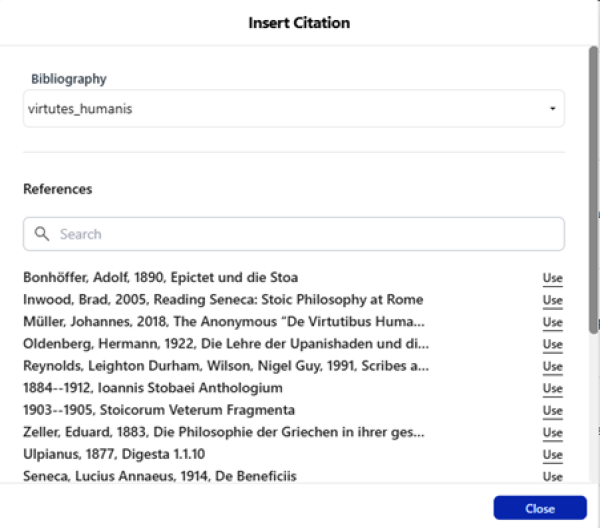
Citation:
- References > Add Citation
- Toolbar icon
- Context menu: Right-click
- Keyboard: Ctrl+Shift+B (Win/Linux) / ⌘⇧B (macOS)
Editing and Deleting Notes
From Main Text:
- Editing the selected lemma text automatically updates the lemma in the apparatus
- Deleting the selected text removes lemma, associated readings, and triggers automatic renumbering
From Apparatus:
- Only free text can be edited directly
- Structured elements (lemma, number, citation) must be deleted manually and reinserted
- Use Delete button in dropdown menu to remove notes
Print, Export & Preview Behavior
Visibility Rules:
- Page Notes: At the bottom of the page where the lemma appears
- Section Notes: At the end of each section (e.g., Heading 1)
Exceptions:
- Lemmas are not displayed in printed/exported documents, only within editor
- When text spans two pages, note appears on the first page
- Notes are visually separated by system-inserted symbols (e.g., ;)
Apparatus Notes Management: Inner/Outer Margin Notes
Create, edit, delete, and reposition philological annotations in the margins of a critical text.
| | Note Important: Inner/Outer Margin notes can be inserted only in the Critical Text section. |
|---|
Creating Inner/Outer Margin Notes
How to Add a Note:
1. Select text in main body
2. Add via:
  - Menu: References > Add Note > Apparatus (Inner/Outer Margin)
  - Toolbar: Click Add Note icon
  - Context menu: Right-click in main text
  - Keyboard: F5
Lemma Generation:
- Generated automatically from selected text
- >6 words: first 3 + last 3; ≤6 words: first + last
- Lemma visible only in editor, not exported or printed
Editing and Deleting Notes
From Main Text:
- Editing lemma in main body updates corresponding apparatus note automatically
- Deleting lemma text automatically removes associated apparatus note
From Apparatus:
- Only manually entered free-text can be edited
- Structural elements must be deleted and reinserted via appropriate commands
- Use Delete button in dropdown menu
Adding Readings
Readings are textual variants or comments linked to a lemma.
Elements of a Reading:
- Reading Separator (e.g., :)
- Free Text
How to Add:
- Menu: References > Add Reading > Add Reading Separator
- Toolbar: Click Add Reading Separator
- Keyboard: F2
- Context menu: Right-click in apparatus boxes
Swap Margin Functionality
Swap a note's position between Inner and Outer margins. Useful for layout adjustments on odd/even pages.
How to Swap:
- Menu: References > Swap Margin (active only if both margin boxes present)
- Dropdown: Use Swap menu next to a note
Behavior:
- Note moves between boxes without data loss
- Margin changes instantly reflected in layout
Display in Preview, Print, and Export
Supported Outputs: .critx, .pdf
Margin Positioning Rules:
| Page Type | Inner Margin | Outer Margin |
| Odd Pages (recto) | Right | Left |
| Even Pages (verso) | Left | Right |
Additional Display Logic:
- Lemma: Shown only in editor
- Notes across pages: Displayed only on first page
- Multiple notes on same anchor: Automatically separated by semicolons
| | Note: When multiple marginal notes appear in same context, they are separated by a comma. This formatting behavior cannot be modified. |
|---|
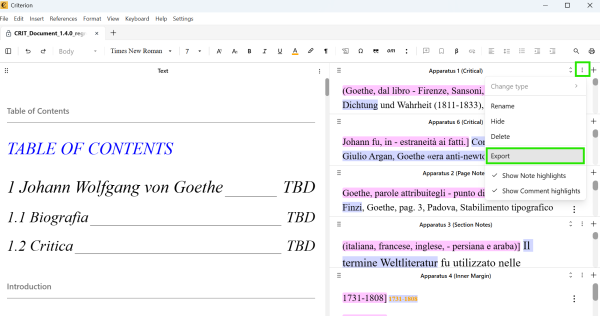
Exporting Apparatus Notes to Excel
Export annotations from various apparatus box types into .xlsx files for reviewing, archiving, or sharing.
Access: Click dropdown menu in top-right corner of any apparatus box > Export > Excel
Supported Apparatus Types
- Critical Apparatus
- Page Notes
- Section Notes
- Inner Margin Notes
- Outer Margin Notes
Excel Export Format
Critical Apparatus columns:
- APPARATUS_TYPE, APPARATUS_TITLE, LEMMA, APPARATUS_ENTRY, READING 1, READING 2, …, READING N
Page/Section/Margin Notes columns:
- APPARATUS_TYPE, APPARATUS_TITLE, LEMMA, APPARATUS_ENTRY
Naming Convention: Export_<APPARATUS_TYPE>_<APPARATUS_TITLE>.xlsx
| | Note: If apparatus box is empty, system still produces Excel file with correct structure but no data rows. |
|---|
Managing Highlight Colors for Apparatus Notes, Comments, and Bookmarks
Customize highlight colors of editorial elements within the Criterion editor.
 | Warning: These customizations affect only the editor view, not exported or printed documents. |
|---|
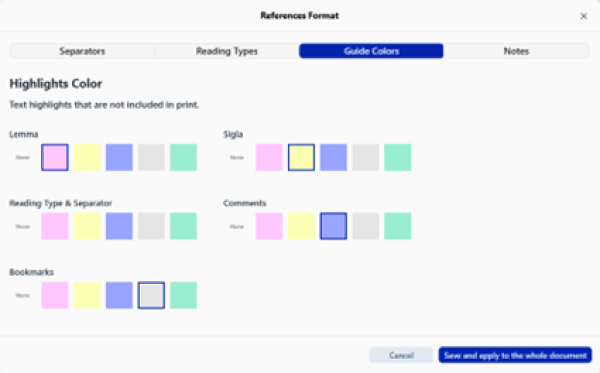
Access: References > References Format…
Customizable Elements:
| Element | Default Color | Available Options |
| Lemma | Pink | Pink, Yellow, Blue, Gray, Green, None |
| Sigla | Yellow | Pink, Yellow, Blue, Gray, Green, None |
| Reading Type & Separator | White | Pink, Yellow, Blue, Gray, Green, None |
| Comments | Blue | Pink, Yellow, Blue, Gray, Green, None |
| Bookmarks | Gray | Pink, Yellow, Blue, Gray, Green, None |
Display Priority (when elements overlap):
1. Apparatus Notes (highest)
2. Comments
3. Bookmarks (lowest)
Settings are persistent across sessions and retroactively applied to existing notes, comments, and bookmarks.