Table of Contents
Paratextual Elements
Overview
When preparing academic, editorial, or critical editions, small details make a big difference. Line numbers, page numbers, headers, and footers are not just decorative they provide structure, improve navigation, and ensure your document meets publishing standards.
With this guide, you'll learn how to:
- Add line numbers for precise referencing
- Customize page numbering by section
- Insert dynamic headers and footers with metadata
- Format everything with full control
All features are built to support scholarly and professional workflows from manuscripts to final exports.
Line Numbers
Line numbers help readers and reviewers reference specific parts of your text. In Criterion, you can display them at regular intervals and control how they restart.
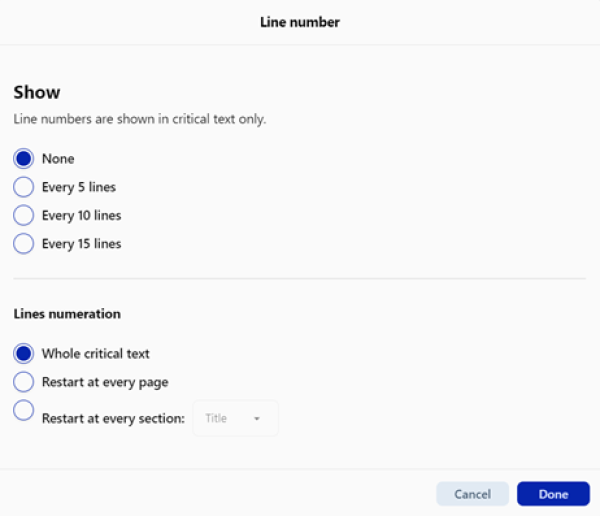
How to Add Line Numbers:
1. Go to: Insert → Line Number
2. Choose how often numbers appear:
  - Every 5 lines
  - Every 10 lines
  - Every 15 lines
  - None (to remove)
How to Customize Line Numbering:
For advanced control, go to: Format → Line Number…
A dialog box opens with two main sections:
| Section | Options |
| Show | None, Every 5 lines, Every 10 lines, Every 15 lines |
| Lines Numeration | Whole critical text (continuous), Restarts at every page, Restarts at every section |
Note Important:
- Line numbers are visible only in the Critical Text section
- They appear in: Document preview, Print, PDF export
- They are not shown during regular editing (due to technical limitations)
- Only paragraph lines are counted (excluding titles and headings)
- Format is always Arabic numerals (1, 2, 3…)
Page Numbers
Page numbers help organize long documents and are essential for tables of contents, citations, and formal publishing.
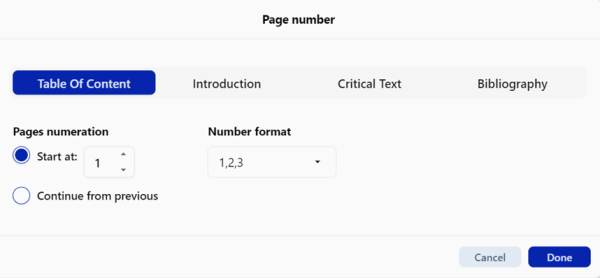
How to Add Page Numbers:
1. Go to: Format → Page Number
2. A tabbed window appears — one tab for each section:
  - Table of Contents
  - Introduction
  - Critical Text
  - Bibliography
For each section, you can set:
A. Page Numeration:
- None: No page numbers in this section
- Continue from previous: Keeps counting from the last page of the prior section
- Start at: Define a custom starting number (e.g., start Introduction at page i, or Critical Text at page 1)
B. Number Format:
| Format | Example |
| Arabic numerals | 1, 2, 3 |
| Arabic with total | 1 of 10 |
| Uppercase Roman | I, II, III |
| Uppercase Roman with total | I of X |
| Lowercase Roman | i, ii, iii |
| Lowercase Roman with total | i of x |
Page Numbering in “x of y” Format:
 | Note: When using the “x of y” format (e.g., “Page 3 of 15”), the value “y” represents the number of the last page of the entire document. This format is only available if all sections use the same “x of y” numbering style AND are set to “Continue from previous”. If any section breaks the sequence, the system will not be able to correctly calculate the final “y” value. |
|---|
Headers & Footers
Headers (top of page) and footers (bottom of page) are perfect for adding consistent, automatic information across all pages.
How to Insert a Header or Footer:
1. Move your mouse to the top or bottom margin of the editing area
2. A three-part bar appears: Left, Center, Right
3. Click any section to activate it
4. Right-click to open the context menu and choose what to insert
Available options:
- Page Number
- Date (current date from your system)
- Date & Time (with timestamp)
- Author (from document metadata)
- Title (document title from metadata)
| | Note: On screen: you'll see placeholder text like {Author}. In print/export: It becomes the actual value (e.g., “Dr. Elena Verdi”). |
|---|
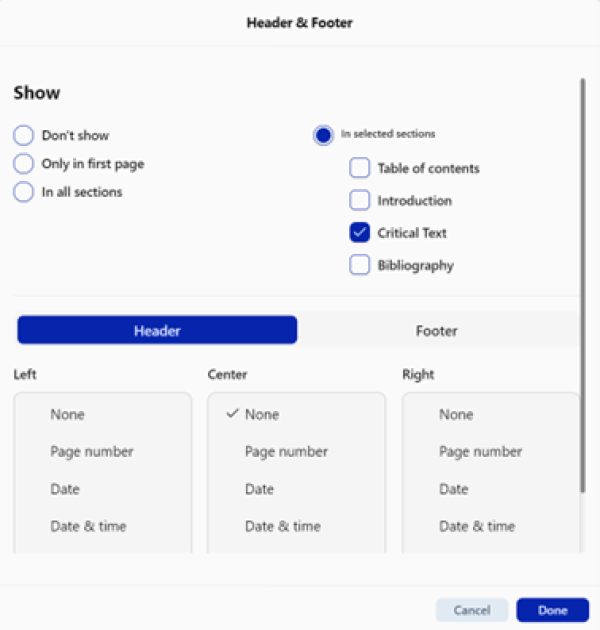
How to Customize Headers & Footers:
Go to: Format → Header & Footer...
A. Show Header/Footer:
- Don't show
- Only in first page
- In all sections
- In selected sections: Pick one or more (ToC, Introduction, Critical Text, Bibliography)
Edit Content by Zone:
Each header/footer has three zones (Left, Center, Right). For each, select what to display:
- None, Page Number, Date, Date & Time, Author, Title
Key Rules & Behavior
| Element | Rule |
| Line Numbers | Only paragraph lines are counted (excluding titles and headings) |
| Page Numbers | Can be formatted differently per section |
| Headers/Footers | Placeholders resolved only in preview, print, or export |
| Metadata Use | Pulls data from the Metadata Panel (File → Metadata) |
| Visibility | All paratextual elements appear in final output, not during basic editing |
| | Note: The information displayed in the document's header and footer is automatically drawn from the settings configured through File > Metadata. Any changes made to the metadata will automatically be reflected in the print preview and the final exported document. |
|---|