Search and Replace
Overview
The Search and Replace functionality in Criterion enables users to quickly locate and optionally replace text throughout a critical edition. It is designed to cover all editable components including main text, apparatus, and bibliographic references.
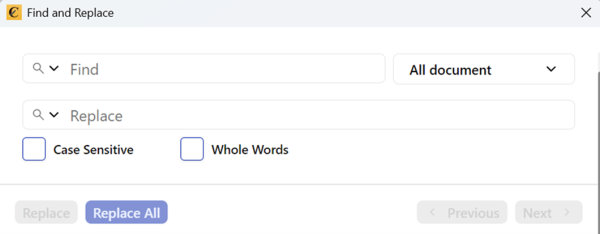
Accessing the Feature
You can launch the Find and Replace dialog in three ways:
| Method | Action |
| Toolbar | Click the magnifying glass icon in the toolbar |
| Menu | Edit → Find |
| Keyboard | Ctrl+F (Windows/Linux) or ⌘+F (macOS) |
The dialog remains in the foreground, allowing continuous navigation between results and the text editor.
Search Functionality
Text Entry
| Feature | Description |
| Character Limit | The “Find” textbox allows entry of up to 255 characters |
| Search History | A magnifying glass icon provides access to the last 10 searches |
| Quick Access | Clicking a previous search re-populates the textbox |
Scope Selection
Users can specify where to search:
| Scope | Description |
| All Document | Entire text and apparatus |
| Text | Main body only |
| Apparatus | All apparatus sections (up to 8 will be listed) |
Live Search and Navigation
| Feature | Description |
| Live Result | Search results appear live as you type |
| Navigation | Buttons Next > and < Previous allow browsing matches |
| Counter | Shows the current match and total number of matches |
| Clear | An “X” icon clears the search field |
Replace Functionality
Replace Fields
| Feature | Description |
| Input | Enter replacement text in the second textbox |
| History | The history icon allows selecting from the last 10 replacements |
Replace Options
| Option | Description |
| Replace | Replaces the currently highlighted match |
| Replace All | Replaces all occurrences in the selected scope |
 | Note: Replacements maintain the original formatting (e.g., bold, underline, font, color). |
Advanced Search Options
Case Sensitivity
| Setting | Description |
| Enabled | The search distinguishes between “Word” and “word” |
| Default | Disabled by default |
Whole Word Match
| Setting | Description |
| Enabled | Limits results to exact word matches |
| Benefit | Avoids partial matches (e.g., “word” won't match “wording”) |
Highlighting and Usability
| Feature | Description |
| Dynamic Highlighting | Found text is highlighted dynamically to improve visibility |
| Navigation Sync | Highlighting follows the user's navigation using Next/Previous |
| Performance | Designed for performance on large documents with minimal lag |
Search History
| Feature | Description |
| Stored Queries | Both search and replace fields maintain a history of the last 10 queries |
| Management | Users can revisit or clear search history as needed |
Summary of Features
| Feature | Supported |
| Search in Main Text | ✅ Yes |
| Search in Apparatus | ✅ Yes |
| Search in Bibliography | ✅ Yes |
| Replace Functionality | ✅ Yes |
| Replace All | ✅ Yes |
| Case Sensitivity | ✅ Yes |
| Whole Word Match | ✅ Yes |
| Search History (10 queries) | ✅ Yes |
| Preserve Formatting | ✅ Yes |
| Live Search Results | ✅ Yes |
Best Practices
Use Scope Selection to narrow down searches in large documents
Enable Whole Word Match to avoid unintended replacements
Review matches before using Replace All
Use Search History to quickly repeat common queries
Check Preserve Formatting behavior when replacing styled text
 | Warning: Annotations Exclusion: Bookmarks, Comments, and Apparatus Notes content are NOT included in the global “Edit > Find” functionality. Search & Replace operations cannot be performed on annotation content. |

