Table of Contents
Preferences, Toolbar and Status Bar
Managing Preferences in Criterion
Adapt appearance, behaviour, and features of Criterion to make your experience more comfortable and efficient. Settings apply to entire application and are saved once remain active until you decide to change them.
Access: Settings > Preferences
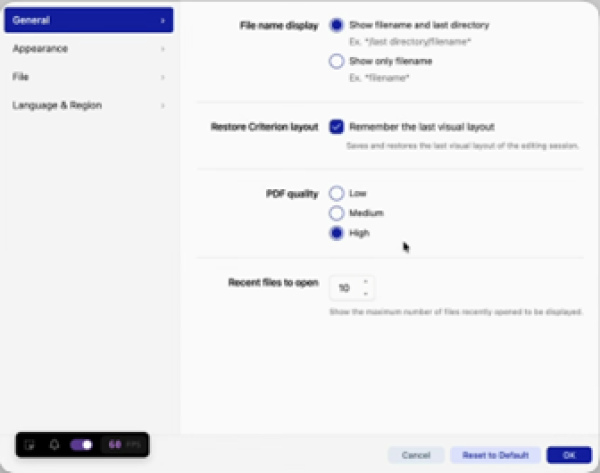
General
Adjust fundamental aspects of application's behaviour.
Show File Name:
- Controls how filename displayed in list of recent documents
- Options: File name only (e.g., document.doc) / File name with path (e.g., …/projects/document.doc)
- Location: Settings > Preferences > General > File name display
Restore Criterion Layout:
- Remembers arrangement of windows and panels used in last session
- When enabled, interface appears exactly as you left it on reopen
- Location: Settings > Preferences > General > Restore Criterion layout
Maximum Number of Recent Files to Display:
- Limits how many recent files appear in “Open Recent” menu
- Allowed range: 1 to 10 files
- Smaller number keeps list cleaner and easier to navigate
- Location: Settings > Preferences > General > Recent files to open
PDF Quality:
- Select quality level for generating print previews and PDF exports
- Controls number of LaTeX compilations performed:
- Low (1 run): Maximum speed, minimum quality
- Medium (2 runs): Balanced speed and quality
- High (4 runs, default): Maximum quality, longer processing time
- Location: Settings > Preferences > General > PDF Quality
Appearance
Personalize visual style of Criterion to match preferences or working environment.
Interface Theme:
- Choose between two visual modes:
- Light Mode (light theme) – default
- Dark Mode (dark theme)
- Location: Settings > Preferences > Appearance > Theme
Comment and Bookmark Preview:
- Adjust number of characters shown in previews for comments and bookmarks (in left sidebar)
- Allowed range: 10 to 1500 characters
- Higher value displays more content, helping quickly understand context
- Location: Settings > Preferences > Appearance > Comment/Bookmark preview character limit
File
Improve document management with practical features.
Remember Last Used Folder:
- Application remembers last folder where you opened or saved a file
- Next file operation automatically opens that location
- Location: Settings > Preferences > File > File saving directory
Auto-Save:
- Automatically saves work at regular intervals to prevent data loss
- Frequency options: Never / Every 5 minutes / Every 10 minutes / Every 15 minutes
- Location: Settings > Preferences > File > Automatic file save
Language & Region
Adapt Criterion to preferred language and date/time format.
Interface Language:
- Change language of application and offline documentation
- Available languages: English (default), Italian, French, German, Spanish
- Location: Settings > Preferences > Language & Region > Criterion Language
Date and Time Format:
- Customize how dates and times displayed within application
- Suggested default: YYYY-MM-DD HH:MM:SS (Extended ISO format)
- Other supported formats selectable from available list
- Location: Settings > Preferences > Language & Region > Date & Time format
Toolbar Management
The toolbar provides quick access to frequently used editing and annotation features.

Default Toolbar Functions
When launching application for first time, toolbar displays predefined set of default functions:
| Group | Functions |
| Navigation | Show/Hide Sidebar |
| Editing | Undo / Redo |
| Styles | Styles, Font Family, Font Size |
| Character Styling | Bold, Italic, Underline, Font Color, Highlight Color (*) |
| Apparatus | Note, Siglum, Citation |
| Annotations | Comment, Bookmark, Link |
| Layout | Alignment, Spacing, List, Decrease, Increase |
| Utilities | Find, Print Preview |
 | Note (*): Highlighting color function available only within editor; LaTeX does not support it in print preview or PDF export. |
|---|
Optional Toolbar Functions
Enrich toolbar by manually adding optional features via customization:
- Superscript, Subscript
- Non-Printing Characters
- Reading Type, Reading Separator
- Symbol
Toolbar Grouping and Order
Toolbar functions organized into logical groups for clarity and efficiency:
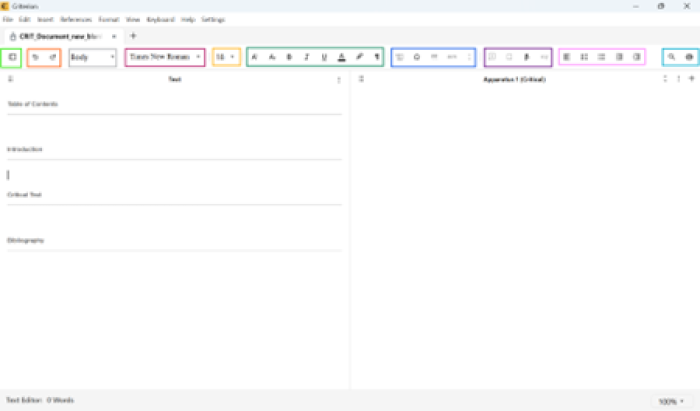
- Show/Hide sidebar
- Undo/Redo
- Styles
- Font Styles
- Font size
- Superscript, Subscript, Bold, Italic, Underline, Color, Highlight, Non-Printing Characters
- Note, Siglum, Citation, Reading separator, Reading Type, Reading Separator
- Comment, Bookmark, Symbol, Link
- Alignment, Spacing, Lists, Decrease, Increase
- Find, Print preview - Ordered List Item
Toolbar Size and Responsiveness
Toolbar dynamically adjusts to window size and screen resolution. If available space insufficient, icons hidden or shown according to natural order, ensuring smooth and consistent user experience.
Customizing the Toolbar
Tailor toolbar to specific needs through two methods. Added functions automatically integrate into correct group and order.
Via Menu:
1. Go to View > Customize Toolbar...
2. Dialog appears showing all available functions
3. Select functions to add to toolbar
4. Click Done to apply changes or Cancel to discard
Via Right-Click:
1. Right-click anywhere on toolbar
2. Choose Customize Toolbar from context menu
3. Follow same steps as above
Showing or Hiding the Toolbar
Toggle visibility of toolbar:
- Navigate to View > Toolbar
- Check or uncheck menu voice to show or hide toolbar
When hidden, some toolbar functions remain accessible via keyboard shortcuts.
Status Bar Management
The status bar at bottom of screen provides instant access to key document information and lets you control visibility.
What Is the Status Bar?
Appears at very bottom of Criterion window and provides real-time information about your document.
By default, shows:
- Zoom level (e.g., 100%) — always visible
- Other customizable info: word count, last edit date, author
You can personalize what appears—or hide it completely for distraction-free view.
Zoom Control: Resize Your View
Adjust view directly from status bar.
Option 1: Use Zoom Slider on Status Bar:
1. Look at bottom-right corner of screen
2. Click zoom percentage (e.g., 100%)
3. Slider appears with values from 20% to 500%
4. Drag slider or click + / - to adjust
Content in Text Box and Apparatus Box resizes instantly.
Option 2: Use the Menu:
- Go to: View > Zoom
- Choose preset levels (50%, 100%, 150%, etc.), enter custom value, or reset to 100%
What Gets Zoomed:
- Only editable content areas affected: Main text box, Apparatus box
- Other interface elements (menus, sidebars, toolbars) remain unchanged for usability
Customize What Appears on Status Bar
Decide what information is most useful to you.
How to Customize:
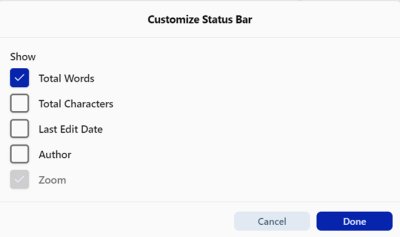
1. Go to: View > Customize Status Bar
2. Dialog box opens listing available items:
- Total Words
- Total Characters
- Last Edit Date
- Author
3. Check boxes next to items you want to display; uncheck those you don't need
4. Click OK to save
Changes take effect immediately.
Available Status Bar Items:
| Item | Description |
| Total Words | Shows current word count of document |
| Total Characters | Includes all characters (with spaces) |
| Last Edit Date | Date and time of last save |
| Author | Name of document's creator (from metadata) |
All values update automatically as you work.
Show or Hide Entire Status Bar
Hide status bar entirely for full-screen editing.
How to Toggle Visibility:
- Go to: View > Status Bar
- Checked = Visible / Unchecked = Hidden
When hidden, full height of window used for editing. Ideal for presentations, full-screen editing, reducing visual clutter.
Your Settings Are Saved
Everything you customize items shown and preferred zoom level—saved automatically between sessions. When you reopen Criterion:
- Status bar appears exactly as you left it
- Zoom level remains same
- Customized info preserved
No need to reconfigure every time.