Table of Contents
HORTUS — Welcome (First Visit)
Welcome to HORTUS, your single web portal for discovering content, connecting with people, and collaborating—without juggling ten tabs and three spreadsheets. Some areas are fully open to visitors, and some actions appear only once you’re logged in.
Start here in 2 minutes
- Use the top menu as your map.
From the header you can jump straight to the main modules: Projects, Events, News, Experts, Marketplace, Support, Social, and the Training Center.

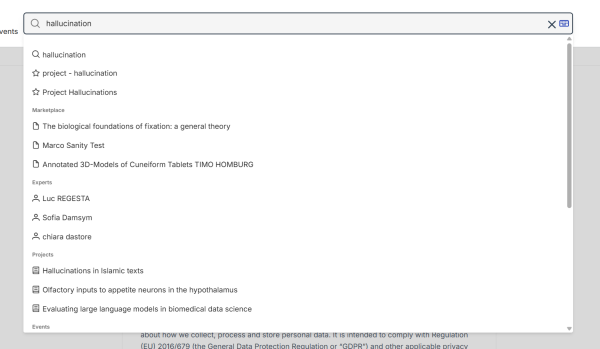
- If you already have a keyword… use Global Search.
The top menu includes a global search field so you can search across all content of the platform, not only inside one section.
- Make the interface comfortable.
You can switch light/dark theme and change the interface language (English/Italian) from the header tools.
- Log in when you want to do things, not only read.
Some options and actions appear only when you are logged in—like enrolling in trainings or registering for events. You can log in with your academic id or ORCID.
Where are the trainings?
Go to the top menu of HORTUS and select Training Center. There search for the HORTUS trainings if you want to follow the course on our MOODLE training centre. Moodle’s objective is to provide a flexible, research-informed digital learning environment that supports the design, delivery, and study of pedagogically sound, collaborative, and scalable education across disciplines.
Inside the Training Centre you can browse course categories and search using the course search field (labelled “Search course…”). Visitors can browse and read course descriptions, but cannot enrol until logged in.
Go to the following HORTUS - Training video playlist to view all our video material.
Where is the HORTUS wiki?
You're already here.  The HORTUS wiki introduction is here.
Need help? Here’s the fastest path
Support area (in the top menu):
Use Support when you want structured help on the platform:
- Documentation for user manuals and workflow guidance
- FAQ for quick answers to common questions
- Issues to report a problem or request an improvement
Report an issue (Service Desk + tracker):
In the Issues tab you can open the external tracker via “Go to Redmine”, or create a report directly from the platform via “Create new issue” (a guided form).
Email the Service Desk:
You can contact the service desk at: service-desk@itserr.it
Need a quick answer instead of a ticket?
Use the header Chat entry point (menu item) or the paper‑plane icon to start a chat.
What should I explore first?
Pick the module that matches your intent:
- Projects → understand initiatives, outputs, and collaborators.
- Marketplace → discover resources and tools in a curated catalogue.
- Experts (People) → find who to contact and who is open to collaborations.
- Events → find workshops/webinars and register to participate.
- News → stay oriented with updates and announcements.
Your personal area (once you’re logged in)
My Workspace is your home base.
Open the user menu (avatar) and go to My Workspace to access your private working area and personal actions.
Favourites & Followed = your shortlist + notifications control.
In My Workspace, open “Favourites & Followed” to manage items you’ve saved across the platform. The page is organised by tabs (for example: Resources, Projects, Searches, Tools, Experts) and includes list/card view, sorting, and a search field to filter your favourites.
Follow = get updates without checking manually.
Following an item means you subscribe to updates: when it changes, you’ll receive a notification in the platform’s notification area.
Quick access icons you’ll use a lot:
- Star icon (“My Favourites”) in the header for fast follow‑up.
- Bell icon (Notifications) to see recent updates and “Mark all as read” when you’re done.
A simple first‑visit routine you can reuse
- Choose your goal: discover content, find people, join an event, or learn a workflow.
- Use the top menu to go straight to the right module.
- Use Global Search when you already have keywords.
- Save what matters using My Favourites, and follow items when you want update notifications.
- If you get stuck, go to Support → Documentation / FAQ / Issues, or contact service-desk@itserr.it.