
Table of Contents
Critical Apparatus and Sigla Management
Managing Witnesses (Sigla)
In the Criterion editor, a Siglum (plural Sigla) represents a reference to a source, such as a manuscript or printed edition. Sigla are used in critical editions to annotate textual witnesses and sources.
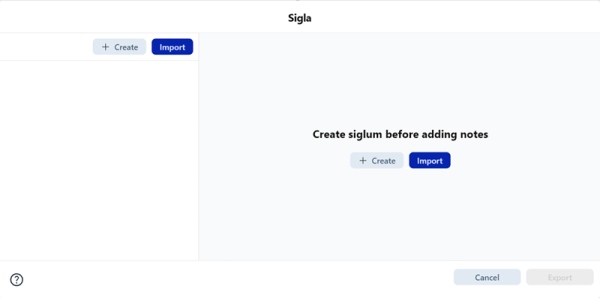
Creating a Siglum
1. Go to References > Sigla Setup... or press F6
2. Click Create
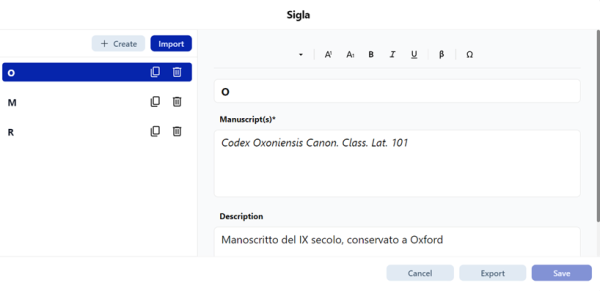
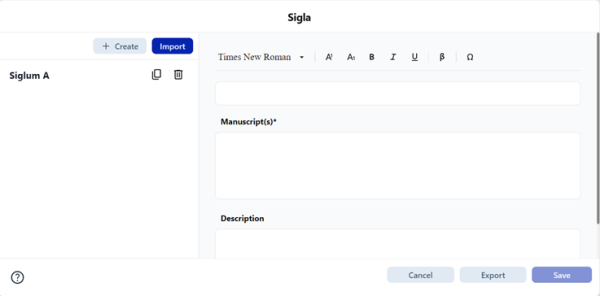
Siglum Definition Interface:
| Field | Required | Max Length | Description |
|---|---|---|---|
| Siglum Definition | ✅ Yes | 30 chars | Short ID (e.g., A, Vat. lat. 123). Supports superscript, symbols, different keyboards |
| Manuscript(s) | ✅ Yes | 5000 chars | Bibliographic description or reference. Must be populated to enable Save |
| Description | ❌ No | 10000 chars | Optional details (paleography, condition, etc.). Supports rich text formatting |
Formatting toolbar available above all fields offers:
- Font selection (system fonts)
- Bold, Italic, Underline, Strikethrough
- Superscript/Subscript
- Insert symbol (β)
- Insert existing siglum (Ω)
- Keyboard mapping
Inserting a Siglum into the Text
You can insert a siglum reference directly into your document using:
- Menu: References > Add Siglum
- Shortcut: F3
- Toolbar: Click the Add Siglum icon
- Context menu: Right-click in Main Text or apparatus boxes
Selection Popup:
- A scrollable list of defined sigla appears
- Click desired siglum to insert at cursor position
- If no sigla defined, system prompts to open Sigla Setup
Displaying a Siglum in the Editor
Once inserted:
- The siglum is visually represented at the insertion point
- Hovering shows a tooltip with first 70 characters of associated Manuscript(s) field
- If text exceeds 70 characters, it is truncated with ellipsis (…)
Editing and Deleting Sigla
1. Open References > Sigla Setup...
2. Select siglum from left panel
3. Edit fields in right panel
4. Click Save to apply changes
Duplicate: Click the 📝 icon. Copy appears with incremented suffix. Delete: Click the 🗑️ icon.
 | Warning: This operation is irreversible. |
|---|
Importing and Exporting Sigla
For sharing or reusing sigla:
Import:
1. Load a .siglum file via the Import button
2. If naming conflicts detected, choose:
- Replace: Override existing siglum
- Discard: Keep existing, ignore imported
- Keep Both: Import with suffix (e.g., A → A_1)
Export:
1. Save current sigla list as .siglum file via Export button
2. Choose destination path and filename (default: sigla_export.json)
Critical Apparatus Notes Management
Creating a Critical Note
A Critical Note links a selected lemma (word or phrase) in the main text to one or more textual variants or annotations (readings) in the apparatus.
 | Note important: Critical apparatus notes can be inserted only in the Critical Text section. They are not available in Table of Contents, Introduction, or Bibliography. |
|---|
Step 1: Add Lemma
1. Select text in the main text that you want to annotate
2. Add note via:
- Menu: References > Add Note > Apparatus n (Critical)
- Toolbar: Click "Add Note" icon
- Context menu: Right-click in main text
- Keyboard: F5
Lemma Display Logic:
- If selected text > 6 words: shows “first 3 words … last 3 words”
- If ≤ 6 words: shows “first word … last word”
Step 2: Add One or More Readings
Each reading can consist of:
| Element | How to Insert | Shortcut |
| Reading Separator (:) | References > Add Reading > Add Reading Separator / Toolbar / Context menu | F2 |
| Free Text | Manually type or paste content (e.g., vicisse, om. C) | - |
| Reading Type (add., om., del., tr.) | References > Add Reading > Add Reading Type / Toolbar / Context menu | F4 |
| Siglum (A, B) | References > Add Siglum / Toolbar / Context menu | F3 |
| | Note: Manual separators (,, ;) must be added by the user. |
|---|
Editing a Critical Note
Option A: From Main Text
- Modify the lemma directly in the main body
- All linked notes are updated automatically
Option B: From Apparatus Box
- Only Free Text can be edited directly
- Structural elements (lemma, separator, type, siglum) must be deleted manually and reinserted using appropriate menu/toolbar/shortcut
| | Warning: Changes to reading types affect only future entries—not past ones. |
|---|
Deleting a Critical Note
Option A: From Main Text
- Delete the selected lemma text
- System automatically removes the note and its readings
Option B: From Apparatus
- Use Delete button in the dropdown menu
Display in Print Preview, Printing, and Export
Each entry shows:
- Line number (auto-calculated)
- Lemma (e.g., vincit])
- Readings (e.g., vicit B, D)
- Reading type, sigla, free text
- Reading separators (:)
- Apparatus entry separator (;) → auto-inserted by system
If a note spans multiple pages, it's printed on the first page only. Multiple notes for the same line are separated using the apparatus entry separator automatically.
Managing Separators for Apparatus Notes
Customize default separators and font styles for key structural elements in apparatus notes. Changes apply consistently across editor view, print preview, printed documents, and PDF exports.
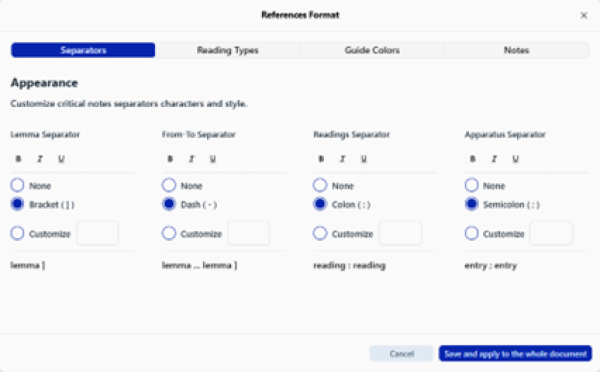
Customizable Elements
| Element | Default Separator | Description |
| Lemma Separator | ] | Used to close the lemma before listing readings |
| From–To Terms Separator | - | Used to indicate word range in multi-word lemmas |
| Readings Separator | : | Separates different readings in same note |
| Apparatus Entries Separator | ; | Separates multiple apparatus entries in same field |
Customization Options
For each separator element:
- Set custom separator: Any symbol, letter, or punctuation (max 3 characters)
- Apply font styles: Toggle bold, italic, and/or underline
- Disable separator: Select “None” if no separator desired
| | Note: Changes are immediately reflected in text editor, print preview, PDF export, and printed documents. |
|---|
Customizing Reading Types in Critical Apparatus Notes
Define the appearance and naming of each reading type representing textual changes (additions, omissions, deletions, transpositions).
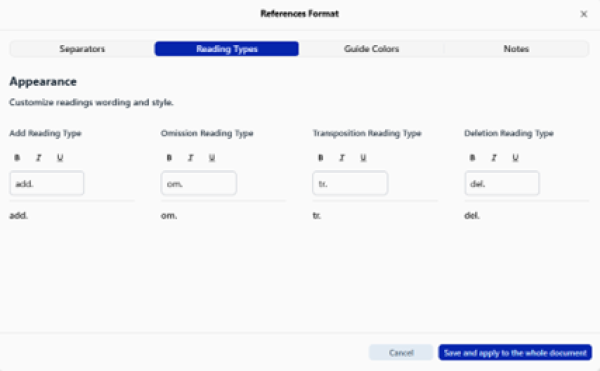
Default Reading Types
| Abbreviation | Meaning | Default Formatting |
| add. | Addition | None |
| om. | Omission | None |
| del. | Deletion | None |
| tr. | Transposition | None |
All font styles (bold, italic, underline) are disabled by default but can be enabled.
Customizing a Reading Type
Change Label:
- Replace default abbreviation with custom label
- Maximum: 10 characters (letters, numbers, punctuation)
- Example: omiss. or +
Set Font Style:
- Toggle Bold, Italic, Underline for each reading type
- Styles applied in all views and exports
| | Note: Use “Save and apply to all” to apply changes to all apparatus notes, including existing ones. |
|---|