
criterion:bookmarks
Table of Contents
Bookmarks Management
Overview
This module enables users to create, organize, navigate, search and manage bookmarks within critical text documents. Bookmarks serve as navigational anchors, improving access to key sections such as verses, variants, or annotations.
Accessing Bookmarks
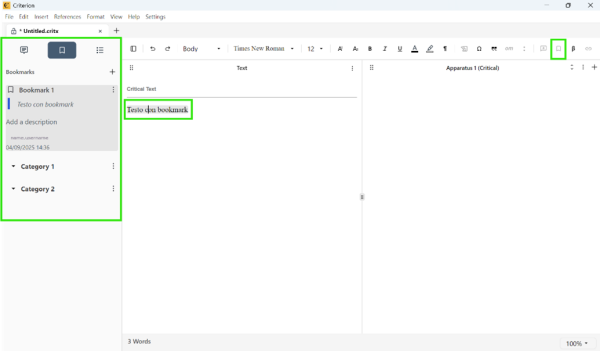
Show/Hide Bookmark Sidebar:
1. Click the "Show/Hide Bookmarks" button located on the toolbar
2. This toggles the visibility of the bookmark sidebar
3. The sidebar displays all bookmarks structured by categories (if defined)
Creating Bookmarks
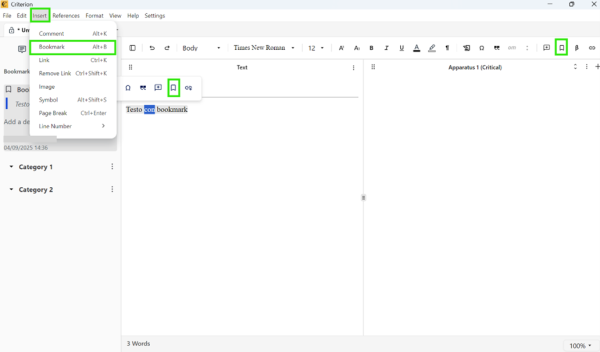
Methods of Insertion (Main Text only):
| Method | Action |
| MenuBar | Insert → Bookmark |
| Toolbar Button | Click the bookmark icon |
| Bubble Toolbar | Appears after text selection |
| Keyboard | Ctrl+Alt+B (Win/Linux) / ⌥⌘+B (macOS) |
 | Note Important: Bookmarks cannot be created in Table of Contents or Apparatus boxes. |
|---|
Bookmark Types:
- With Selected Text: Bookmark includes a text reference (up to 20 characters)
- With Cursor Only: Bookmark inserted as invisible anchor (no reference text shown)
Bookmark Content Fields:
| Field | Description |
| Title | Default: “Bookmark#1”; editable up to 255 characters |
| Reference | Up to 20 characters of selected text; required if text was selected |
| Description | Optional field for additional context, max 255 characters |
| Metadata | Auto-filled: creator's name, creation date, last modified date |
| | Note: Tooltips show the full content on hover when fields are truncated. |
|---|
Organizing Bookmarks by Category
Creating & Editing Categories:
1. Click the "+" button in the bookmark sidebar
2. Default name: "Category#1" (editable up to 255 characters)
3. Rename via double-click or context menu
4. Truncated at 20 characters in view
Moving Bookmarks:
1. Use the "Move" button in the context menu next to a bookmark
2. If no other categories exist, the only available option is "Uncategorised"
Deleting Categories:
1. Via the context menu
2. If the category contains bookmarks:
- Option to delete them all
- Or move them to another category
Editing or Deleting Bookmarks
1. Edit Title and Description directly from the sidebar
2. Use the context menu (three dots) next to a bookmark to:
- Move to another category
- Delete the bookmark (confirmation required unless auto-deleted due to text deletion)
| | Note: Deleted bookmarks can be recovered via the Undo feature. |
|---|
Navigating with Bookmarks
1. Clicking a bookmark scrolls the main document to the associated section
2. Associated text is highlighted in the editor
3. Highlight visibility is controlled by the "Show Bookmark Highlights" option in the text box
Searching Bookmarks
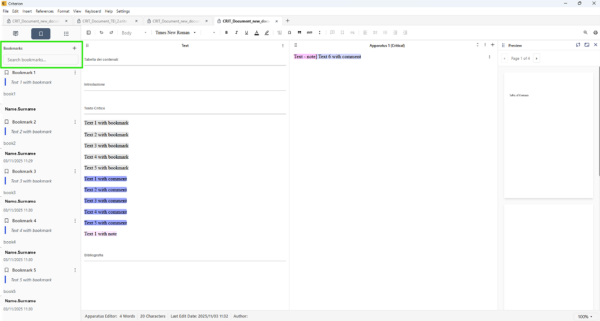
Bookmarks can be searched directly within the editor using a dedicated search field located in the left sidebar, under the Bookmarks section.
Key behaviors:
| Feature | Description |
| Search Field Location | Text input field in left sidebar, within Bookmarks section |
| Incremental Search | Results update in real time as you type |
| Searchable Content | Author's name, title, references, and bookmark description |
| Contextual Filtering | Only matching annotations displayed within original category |
| Automatic Filter Reset | Clicking outside search field clears filter and restores full list |
| No-Results Handling | If no matches found, bookmark list remains unchanged |
| Document Scope | Search limited to annotations in currently open document |
| Exclusion from Global Search | Bookmarks not included in “Edit > Find” functionality |
Bookmark Behavior and Integration
- Bookmarks follow referenced text even after cut/paste or edit
- If referenced text is deleted, the bookmark is removed automatically
- Bookmarks act as invisible characters when inserted without a selection
- Sidebar supports unlimited bookmarks with scroll support
Additional Features
- Hover over the bookmarked text to reveal the corresponding bookmark in the sidebar
- Collapsed categories automatically expand when you click on text containing relevant bookmarks
- Highlight color is distinct from comments/notes and configurable via settings (see Apparatus Notes (Critical, Page, Section, Margin))
Notes and Restrictions
- Bookmarks are disabled unless a valid text selection is made
- Bookmarks cannot be applied to: Table of Contents and Apparatus boxes
criterion/bookmarks.txt · Last modified: by fincons