
Table of Contents
Text Editing and Formatting
Text Formatting and the Format Menu
The Format Menu provides essential tools to apply typographic styles to text in the Main Text area. This formatting is reflected in the editor view, print preview, printed output, and PDF exports.
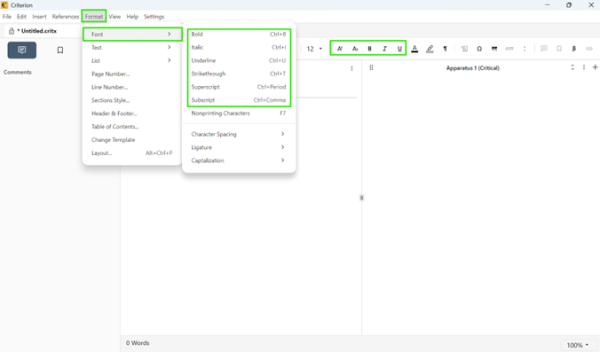
Applying Formatting
| Command | Shortcut | Description | Exported Output |
| Bold | Ctrl/⌘+B | Applies bold style | ✅ Yes |
| Italic | Ctrl/⌘+I | Applies italic style | ✅ Yes |
| Underline | Ctrl/⌘+U | Underlines selected text | ✅ Yes |
To apply formatting:
1. Select the desired text in the main body
2. Use one of: Format > [Style], keyboard shortcut, or toolbar button
To remove formatting: Reselect the text and reapply the same formatting command (toggle behavior)
 | Note: Multiple styles can be combined (e.g., bold + italic). Formatting applies only to the Main Text, not apparatus notes or metadata. |
|---|
Advanced Text Formatting: Lists and Layout
Creating and Managing Lists
Users can apply several types of lists to document text
| | Note Important: Bulleted and numbered lists cannot be applied inside document notes. |
|---|
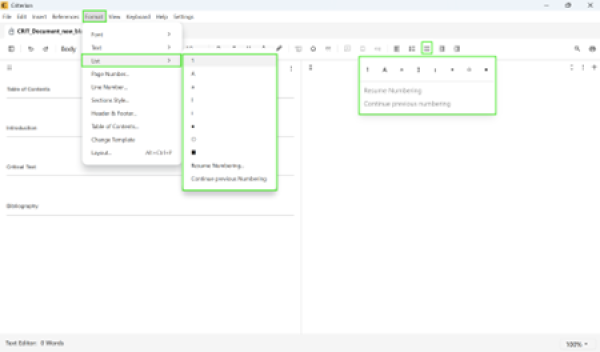
Numbered Lists:
- Arabic numerals (1, 2, 3, …)
- Roman numerals (I, II, III, … or i, ii, iii, …)
- Alphabetical sequences (A, B, C, … or a, b, c, …)
Bulleted Lists:
- Standard bullet (•), Hollow bullet (◦), Solid square (▪)
- Styles cycle automatically with each level of indentation
How to apply a list:
1. Select text or place cursor where list should begin
2. Use the List button in toolbar or Format > List
3. Choose desired list type from dropdown
Automatic Behavior
- Pressing Enter creates a new list item with auto-incremented numbering
- Pressing Tab increases indentation and creates a nested sub-list
- Multiple levels of nesting are supported
Modifying or Removing Lists
- Convert list types via Format > List menu
- Remove list formatting by clicking the active list button again or pressing Shift+Tab
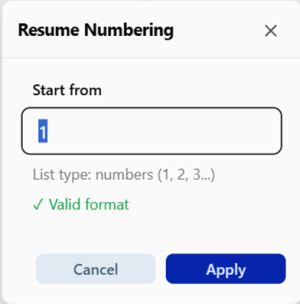
Resume or Continue Numbering
For numbered and alphabetical lists, you can:
- Resume Numbering: Start a new list from the last number/letter used previously
- Continue Previous Numbering: Automatically continue numbering after intervening content
Indentation Control
Use indentation to create hierarchy in lists or structure plain paragraphs:
| Action | Toolbar | Menu | Shortcut (Win/Linux) | Shortcut (macOS) |
|---|---|---|---|---|
| Increase Indent | Button | Format > Text > Increase Indent Level | Ctrl+_ | ⌘+_ |
| Decrease Indent | Button | Format > Text > Decrease Indent Level | Ctrl+- | ⌘+- |
| | Note Important: Indentation affects only the text portion of a paragraph or list item—the list marker (number, letter, or bullet) remains aligned with the list's base level. |
|---|
Text Alignment
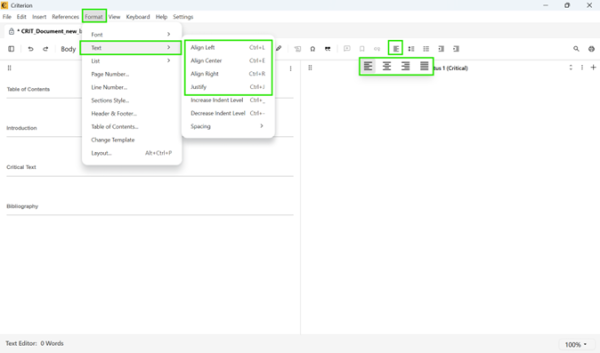
Each paragraph or list item can be aligned independently:
- Left (default), Center, Right, Justified
To change alignment:
1. Select text or place cursor in the line
2. Use alignment buttons in toolbar or Format > Text menu
Managing Unprintable Characters
Unprintable (or “non-printing”) characters are formatting symbols used to structure your text:
| Character | Symbol | Description |
| Space | · (middle dot) | Marks each space between words |
| Tab | → (right arrow) | Shows tab indentation |
| Paragraph Break | ¶ (pilcrow) | Indicates end of paragraph and Enter key press |
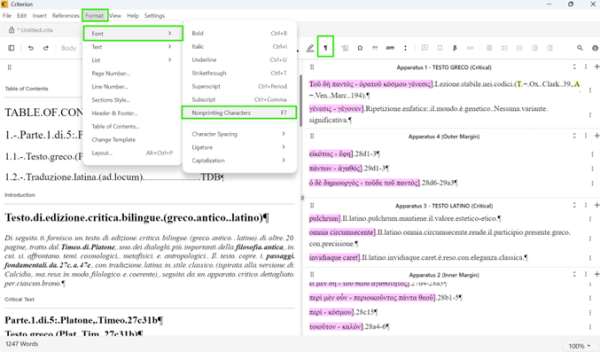
How to show/hide unprintable characters:
- Keyboard: Press F7
- Menu: Format > Font > Nonprinting Characters
- Toolbar: Click the ¶ icon
| | Note Important: When enabled, unprintable characters appear inline with subtle light gray styling that doesn't interfere with readability. |
|---|
Copy, Cut, and Paste Operations
| Operation | Description |
| Cut | Removes selected text and places it in clipboard |
| Copy | Copies selected text and formatting to clipboard |
| Copy Style | Copies only the text style (not content) |
| Paste | Inserts copied/cut content at cursor position |
| Paste Style | Applies previously copied style to selected text |
| Paste Without Formatting | Pastes text content using destination formatting |
Keyboard Shortcuts:
| Operation | Windows/Linux | macOS |
| Cut | Ctrl+X | ⌘X |
| Copy | Ctrl+C | ⌘C |
| Paste | Ctrl+V | ⌘V |
| Copy Style | Ctrl+Alt+C | ⌥⌘C |
| Paste Style | Ctrl+Alt+V | ⌥⌘V |
| Paste Without Formatting | Ctrl+⇧+V | ⇧⌘V |
| | Bookmarks and Comments: Copy does not transfer associated objects (bookmarks, comments, links). Cut+Paste retains or reassigns them appropriately. |
|---|
Undo and Redo Operations
What Can You Undo/Redo:
Standard Editing Actions:
- Typing, deleting, or editing text
- Applying formatting (bold, italic, underline, font size, color, alignment)
- Cutting or pasting content
Custom Workflow Actions:
- Adding, editing, or removing comments and annotations
- Managing bookmarks for quick navigation
- Inserting or editing bibliographic references
- Working with footnotes, marginal notes, and apparatus entries
How to Use:
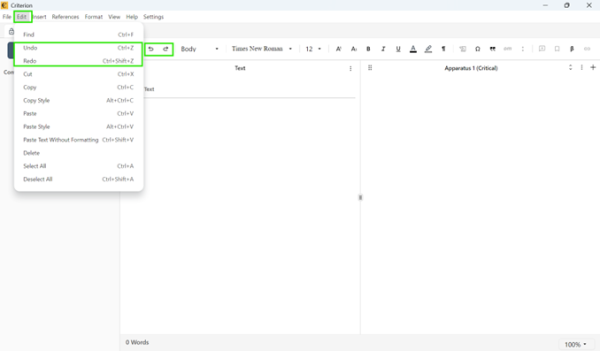
- Toolbar: Click ↶ Undo or ↷ Redo icon
- Menu: Edit > Undo or Edit > Redo
- Keyboard: Ctrl+Z (undo), Ctrl+⇧+Z (redo) / ⌘Z, ⇧⌘Z
 | Warning: Apparatus Entries Limitation: Apparatus entries can only be created from the main text. Once deleted, they cannot be restored via Undo because the system cannot determine which text they should link to. |
|---|