
This is an old revision of the document!
Table of Contents
Link Management in Criterion
Overview
This guide will show you how to create and manage external hyperlinks directly inside your documents. Whether you're referencing a website, sharing a resource, or connecting to online documentation, Criterion makes it easy to add clickable links with just a few clicks.
With this feature, you can:
- Insert links to external websites
- Edit existing links
- Remove links without deleting text
All actions are consistent across menu, toolbars, and keyboard shortcuts — so you can work the way you prefer.
Inserting an External Link
You can turn any selected text into a clickable link that opens an external webpage (e.g., https://www.example.com).
Note important:
- You must select text first. If no text is selected, all options will be disabled.
- Links can be inserted both in the main text and in the free text in the sidebar boxes.
How to Insert a Link
Choose any of these methods:
| Method | Action |
|---|---|
| Menu | Go to Insert → Link |
| Bubble Toolbar | Click the 🔗 Link icon (appears after text selection) |
| Contextual Menu | Right-click → Click the 🔗 Link icon |
| Toolbar Button | Click the 🔗 Link icon in the main toolbar |
| Keyboard Shortcut | Press Ctrl+K (Windows/Linux) or ⌘+K (macOS) |
What Happens Next?
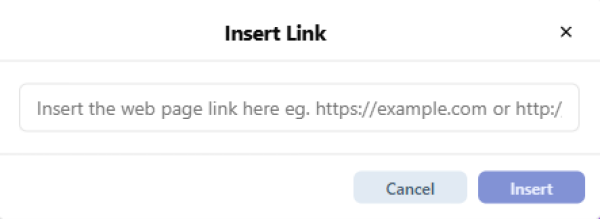
A small dialog box appears where you can:
1. **Enter or paste the full URL** (e.g., https://www.criterion-app.com/support)
2. **Confirm** by clicking **Insert** or pressing **Enter**
The selected text becomes a clickable blue hyperlink.
 | Note: Links are preserved when exporting to PDF and XML/TEI formats. |
|---|
Editing an Existing Link
You can change the destination of any existing link without starting over.
How to Edit a Link
Make sure the linked text is selected, then use one of these methods:
| Method | Action |
|---|---|
| Menu Bar | Insert → Link (only active if linked text is selected) |
| Bubble Toolbar | Click the 🔗 Link icon |
| Contextual Menu | Right-click → Click the 🔗 Link icon |
| Toolbar Button | Click the 🔗 Link button again |
| Keyboard Shortcut | Press Ctrl+K (Windows/Linux) or ⌘+K (macOS) |
The same dialog box appears, allowing you to modify the URL. Click Insert to save changes.
Removing a Link
This action removes only the link behaviour and formatting — the text stays exactly where it is.
How to Remove a Link
With the linked text selected, choose one of the following:
| Method | Action |
|---|---|
| Menu | Insert → Remove Link |
| Bubble Toolbar | Click the 🔗 Link icon → Select Remove Link |
| Contextual Menu | Right-click → Click the 🔗 Link icon → Remove Link |
| Toolbar Button | Click the 🔗 Link button → Click Remove Link icon |
| Keyboard Shortcut | Press Ctrl+Shift+K (Windows/Linux) or ⇧⌘+K (macOS) |
The text returns to normal — no underline, no colour, no clickability.
Link Behavior and Limitations
Supported Locations
| Location | Links Supported? |
| Main Text | ✅ Yes |
| Apparatus Boxes (Critical, Page, Section, Margin Notes) | ✅ Yes (in free text portions) |
| Sidebar Boxes (Comments, Bookmarks) | ✅ Yes (in free text portions) |
| Table of Contents | ❌ No |
| Bibliography Section | ❌ No (use citations instead) |
Export Behavior
| Export Format | Link Preservation |
| ✅ Links remain clickable in the exported PDF | |
| XML/TEI P5 | ✅ Links encoded as <ref> elements with target attribute |
| Excel (Apparatus Export) | ✅ URLs preserved in cell content |
| ✅ URLs visible (underlined or as footnotes depending on settings) |
Best Practices
- Use descriptive link text: Instead of “click here”, use meaningful text like “Criterion User Manual”
- Verify URLs before inserting: Broken links cannot be automatically detected by Criterion
- Keep links updated: If a URL changes, edit the link rather than deleting and recreating it
- Avoid excessive linking: Too many links can reduce document readability
- Test links in PDF export: Always verify that links work correctly in the final exported document
Keyboard Shortcuts Summary
| Action | Windows/Linux | macOS |
|---|---|---|
| Insert Link | Ctrl+K | ⌘+K |
| Edit Link | Ctrl+K (with link selected) | ⌘+K (with link selected) |
| Remove Link | Ctrl+Shift+K | ⇧⌘+K |