
This is an old revision of the document!
Table of Contents
Bibliography and Citations
Bibliographic References Management
Manage bibliographies and bibliographic references in Criterion without requiring integration with external tools like Zotero.
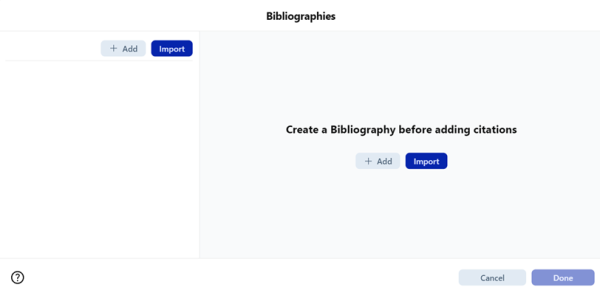
Accessing Bibliography Management
- Navigate to References > Bibliography… in main menu
- Opens Bibliography Management Window for adding, importing, editing, or deleting bibliographies
Creating a New Bibliography
1. Click **Add** in bibliography management window
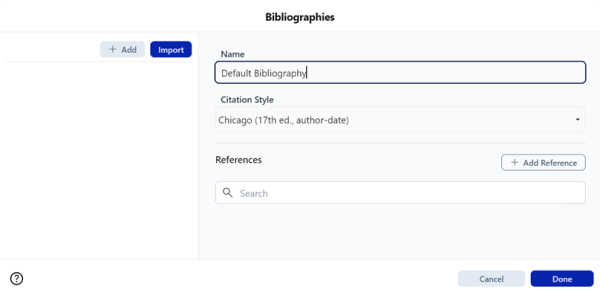
2. New bibliography appears with default name "Default Bibliography"
3. Edit name (max 50 alphanumeric chars) and choose citation style:
  * Chicago (17th ed., author-date)
  * Chicago (17th ed., note-bibliography)
Additional Actions:
- Duplicate: Creates copy with incremented name
- Delete: Requires confirmation; citations already placed in text are not removed
Editing a Bibliography
Once bibliography is created or selected, use right-hand panel to modify:
- Name
- Citation Style
- List of References
Changes saved by clicking Done (enabled only if at least one entry modified).
Managing Bibliographic References
Adding a Reference:
1. Click **Add Reference** in bibliography editor
2. Select Type of Source: Book, Book Section, Journal/Article
3. Form fields adjust dynamically based on selected type
4. Enter author(s) using balloon-style tags (individually removable)
5. Click **Save** to add reference
Editing or Deleting a Reference:
- Modify button: Update fields (save changes to enable Done button)
- Delete button: Permanently remove reference (requires confirmation)<note tip>Deleting a reference does not remove it from document if already cited.</note>
Searching References
- Search Bar located above references list
- Supports case-insensitive live filtering
- Displays counter (e.g., “3 of 10 found”)
- Includes X button to clear search input
Importing Bibliographies (.bib Format)
1. Click **Import** in bibliography manager
2. Select .bib file (BibTeX format)
3. Criterion maps BibTeX fields (author, title, year, etc.) to internal fields
4. Unsupported BibTeX fields are ignored
Results:
- Success: New bibliography created using filename
- Failure: Error message “The file loaded has errors. Please correct the data and reload the file.”
 | Warning: Imported bibliographies cannot be updated after import. Instead, manually add references or export, edit externally, and re-import as new bibliography. |
|---|
Managing Citations in Criterion
What Is a Citation?
A citation in Criterion refers to a structured bibliographic entry that can be inserted inline in any paragraph field, including metadata, footnotes, and apparatus entries.
Each citation consists of:
- Label: Short tag visible in document (e.g., “Chastagnol 1970”)
- Reference: Full bibliographic content
- UUID: Unique identifier for internal management
Insert a Citation
1. Place cursor in text field (Critical Text, Critical, Page and Section notes)
2. Insert via:
  * Toolbar icon (citation button)
  * References > Add Citation
  * Context menu: Right-click
  * Keyboard: **Ctrl+Shift+B** (Win) / **⌘⇧B** (Mac)
Search a Citation
From the list menu:
- Search is case insensitive
- Text searched at any point in quotations
- Synchronous: Results filtered as you type (no button needed)
- Right side shows count of matching citations; X icon clears search
Insert a Bibliography
Automatically generate a complete bibliography including all citations used in document.
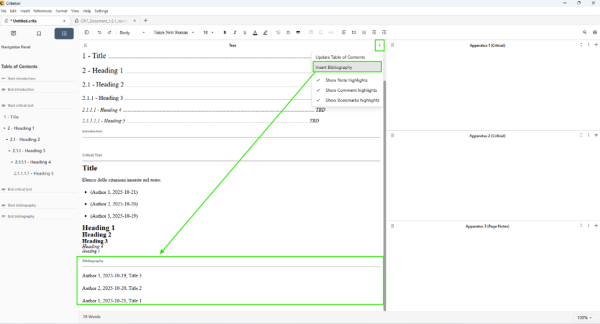
How to Insert:
1. Place cursor in Bibliography section at desired location
2. Right-click in main text to open context menu
3. Select "Insert Bibliography"<note tip>The menu item is disabled if Bibliography section not present in document layout. Include via Format > Layout.</note>
Insertion Behavior:
- Bibliography inserted at cursor position without overwriting existing content
- Each citation appears in separate, visually distinct record
- No duplicates included: each reference appears only once
Sorting Rules (automatic):
1. By author, alphabetical order (A→Z)
2. By publication date, chronological order (oldest→newest), for same author
3. By title, alphabetical order, if author and year identical
Updating the Bibliography:
| | Warning: Criterion does not automatically update bibliography when citations are added, modified, or removed. |
|---|
To refresh:
1. Manually delete entire existing bibliography
2. Place cursor again in Bibliography section
3. Re-run "Insert Bibliography" command
Bibliography Formatting:
- Visual style (font, spacing, indentation) controlled via Format > Section Style
- Citation format follows style selected in Bibliographic References Management
Link Management in Criterion
Create and manage external hyperlinks directly inside your documents.
Inserting an External Link
Turn any selected text into a clickable link that opens an external webpage.
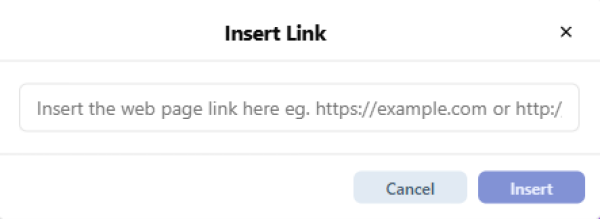
 | Note: You must select text first. If no text selected, all options disabled. Links can be inserted in main text and free text in sidebar boxes. |
|---|
How to Insert:
| Method | Action |
| Menu | Insert > Link |
| Bubble Toolbar | Click 🔗 Link icon after text selection |
| Context Menu | Right-click > 🔗 Link icon |
| Toolbar Button | Click 🔗 Link icon |
| Keyboard | Ctrl+K (Win/Linux) / ⌘+K (macOS) |
Dialog: Enter/paste full URL (e.g., https://www.example.com), confirm with Insert or Enter. Selected text becomes clickable blue hyperlink.
Editing an Existing Link
Change destination of any existing link without starting over.
How to Edit:
- Ensure linked text is selected
- Use same methods as insertion (Menu, Toolbar, Context Menu, Keyboard)
- Update URL in dialog and confirm
Removing a Link
Removes only link behavior and formatting—text stays exactly where it is.
How to Remove:
| Method | Action |
| Menu | Insert > Remove Link |
| Bubble/Context Toolbar | Click 🔗 Link icon > Remove Link |
| Toolbar Button | Click 🔗 Link button > Remove Link icon |
| Keyboard | Ctrl+Shift+K (Win/Linux) / ⇧⌘K (macOS) |
Text returns to normal, no underline, no color, no clickability.