
Table of Contents
Management of Special Characters (Symbols)
Overview
Whether you're working on academic texts, multilingual documents, or technical publications, this guide shows you how to:
- Insert special symbols not found on your keyboard
- Use built-in shortcuts
- Access a wide range of Unicode characters through fonts and subsets
- Ensure correct display and encoding
What Are Special Characters?
Special characters include:
| Category | Examples |
| Mathematical symbols | ≠, ±, ∑ |
| Punctuation marks | — (em dash), – (en dash), • (bullet) |
| Accented letters | à, ç, ñ, ü |
| Copyright & trademarks | ©, ®, ™ |
| Currency symbols | €, ¥, £ |
These may not be directly accessible on your keyboard — but they're fully supported in Criterion.
How to Insert a Special Character
You can insert special characters using one of three methods:
Method 1: Use the "Add Symbol" Dialog (Recommended)
1. Place your cursor where you want the symbol to appear
2. Go to the menu: Insert → Add Symbol
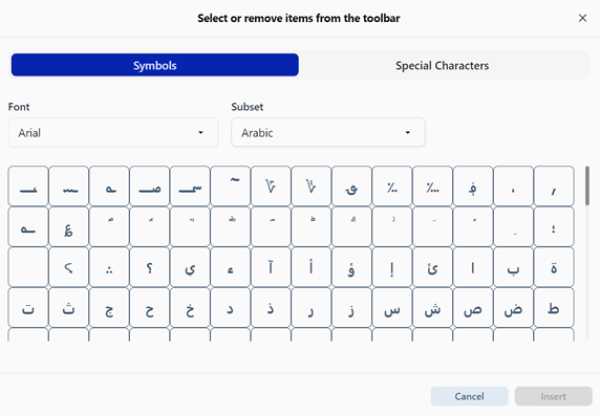
3. The "Add Symbol" dialog opens with two tabs: Tab A: Symbols, Tab B: Special Characters
Tab A: Symbols
Use this tab to browse thousands of Unicode characters by font and script:
- Font Selection: Choose a font (e.g., Arial, Times New Roman, Cambria)
- Subset Filter: Narrow down the list by script or category:
- Latin Extended, Greek, Cyrillic, Arabic
- Mathematical Operators, Dingbats, and more…
Click on any symbol → Preview appears → Click Insert to add it to your document.
Tab B: Special Characters
Quickly access commonly used special characters:
| Character | Description |
| © | Copyright |
| ® | Registered Trademark |
| ™ | Trademark |
| – | En Dash |
| — | Em Dash |
| § | Section Sign |
Simply click on the character you need → Then click Insert.
 | Note: The selected symbol is inserted exactly at the cursor position. All characters are stored and rendered using standard Unicode encoding, so they remain accurate across devices and exports. |
|---|
Method 2: Keyboard Shortcuts (Fast Access)
For frequently used symbols, use these keyboard shortcuts:
| Operating System | Shortcut | Description |
| Windows / Linux | Ctrl+Shift+Y | Opens the Add Symbol dialog |
| macOS | ⇧⌘Y | Opens the Add Symbol dialog |
| | Note Important: These shortcuts do not insert the symbol directly — they open the dialog for selection. |
|---|
Method 3: System Tools Integration
Criterion works seamlessly with your operating system's native tools:
- Special characters can be accessed via system-provided character maps:
- Windows Character Map
- macOS Character Viewer
- Shortcuts or key combinations for frequently used special characters
All Unicode characters are preserved correctly.
Important Notes
No Encoding Changes: Criterion never alters the Unicode value of a character. What you insert is what you keep.
Font Dependency: If a font doesn't support a specific symbol, it may appear as a blank box or question mark. Always check rendering.