
This is an old revision of the document!
Table of Contents
Management of Special Characters (Symbols)
Overview
Whether you're working on academic texts, multilingual documents, or technical publications, this guide shows you how to:
- Insert special symbols not found on your keyboard
- Use built-in shortcuts
- Access a wide range of Unicode characters through fonts and subsets
- Ensure correct display and encoding
What Are Special Characters?
Special characters include:
| Category | Examples |
| Mathematical symbols | ≠, ±, ∑ |
| Punctuation marks | — (em dash), – (en dash), • (bullet) |
| Accented letters | à, ç, ñ, ü |
| Copyright & trademarks | ©, ®, ™ |
| Currency symbols | €, ¥, £ |
These may not be directly accessible on your keyboard — but they're fully supported in Criterion.
How to Insert a Special Character
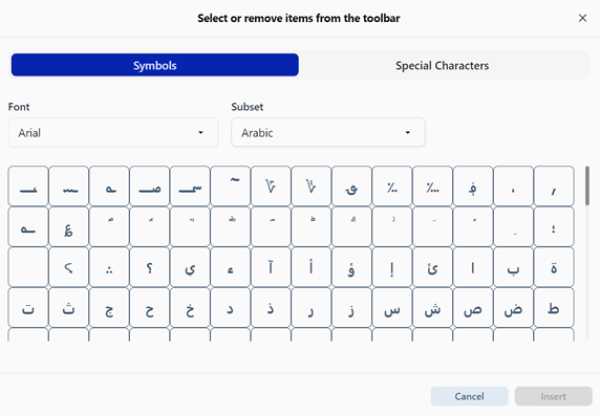
You can insert special characters using one of three methods:
Method 1: Use the "Add Symbol" Dialog (Recommended)
1. Place your cursor where you want the symbol to appear
2. Go to the menu: **Insert → Add Symbol**
3. The "Add Symbol" dialog opens with two tabs: Tab A: Symbols, Tab B: Special Characters
Tab A: Symbols
Use this tab to browse thousands of Unicode characters by font and script:
- Font Selection: Choose a font (e.g., Arial, Times New Roman, Cambria)
- Subset Filter: Narrow down the list by script or category:
- Latin Extended, Greek, Cyrillic, Arabic
- Mathematical Operators, Dingbats, and more…
Click on any symbol → Preview appears → Click Insert to add it to your document.
Tab B: Special Characters
Quickly access commonly used special characters:
| Character | Description |
| © | Copyright |
| ® | Registered Trademark |
| ™ | Trademark |
| – | En Dash |
| — | Em Dash |
| § | Section Sign |
Simply click on the character you need → Then click Insert.
 | Note: The selected symbol is inserted exactly at the cursor position. All characters are stored and rendered using standard Unicode encoding, so they remain accurate across devices and exports. |
|---|
Method 2: Keyboard Shortcuts (Fast Access)
For frequently used symbols, use these keyboard shortcuts:
| Operating System | Shortcut | Description |
| Windows / Linux | Ctrl+Shift+Y | Opens the Add Symbol dialog |
| macOS | ⇧⌘Y | Opens the Add Symbol dialog |
| | Note Important: These shortcuts do not insert the symbol directly — they open the dialog for selection. |
|---|
Method 3: System Tools Integration
Criterion works seamlessly with your operating system's native tools:
- Special characters can be accessed via system-provided character maps:
- Windows Character Map
- macOS Character Viewer
- Shortcuts or key combinations for frequently used special characters
All Unicode characters are preserved correctly.
Important Notes
No Encoding Changes: Criterion never alters the Unicode value of a character. What you insert is what you keep.
Font Dependency: If a font doesn't support a specific symbol, it may appear as a blank box or question mark. Always check rendering.